
How to send an HTML email with n8n: design in Mailvex and test over SMTP
Build the email visually, paste the HTML into Send Email, and run a manual delivery test to your own inbox.
Mailvex · 24 October 2026 · 10 min read

An automation can collect requests and update records correctly while sending an email that is difficult to read: dense text, inconsistent spacing and an unclear button. You can prepare the design separately. Build the email in Mailvex, copy its HTML, and let n8n pass it to your email provider through SMTP.
This guide starts with a manual test to your own address: Manual Trigger → Send Email. The example is a static request confirmation without real customer data. It separates the design, SMTP connection and received message into checks you can assess. Add the form or CRM trigger to your own workflow after that test.
What you need for the first test
- A Mailvex account with a verified email address and HTML export available under your plan. Check the current limits in your account; copying HTML is an export action too.
- Access to n8n with permission to create a workflow and an SMTP credential, which stores the mail server connection settings.
- SMTP access compatible with Send Email. Get the host, port, connection security and authentication details from your provider. Your ordinary mailbox password is not automatically the correct SMTP credential.
- A sender address your provider permits you to use, and your own inbox for receiving the test.
- A logo, message copy and working links. Email images must be accessible to the recipient at their URLs.
For Outlook.com and Microsoft 365, current n8n guidance recommends the Microsoft Outlook node with OAuth. The Send Email path here requires a compatible SMTP service; an ordinary password or app password does not work with every provider.
This workflow uses no Mailvex API integration. You transfer the exported HTML manually. n8n controls the recipient, subject, server connection and sending action; the HTML provides the content and design of the email body.
1. Prepare a static request confirmation
Start with a message that needs no personal data. For example, confirm that a consultation request has been received. A logo, heading, short explanation, contact-page button and footer are enough. Do not promise a response deadline unless your team has agreed to it.
| Element | Example content or action |
|---|---|
| Subject | We received your request |
| Heading | Thank you for getting in touch |
| Body | We received your request. Our team will review it and contact you using the details you provided. |
| Button | Contact and help — linked to your actual website page |
| Footer | Your company name and current contact information |
This is sample content for the walkthrough. You can connect it to a real request later. For now, keep the text identical for every test so a personalization error cannot interfere with checking SMTP and the design.
2. Build the email in Mailvex
- Create an email or choose a suitable template. Give it an internal name, such as “Request confirmation — n8n test”.
- Replace the sample copy. Use one main heading, a clear explanation of what happens next and one primary button.
- Add your logo and any necessary images. Check their proportions, alternative text and whether the message remains understandable without a banner.
- Enter the real button URL. Check linked images, text links and icons too; replace # placeholders.
- Review wide and narrow previews. Correct small labels, awkward line breaks and blocks that interrupt the message.
Use accessible image URLs for the first test. The Mailvex storage mode retains links to hosted assets. Self mode requires you to host the images at the configured addresses; do not choose it without setting that up. Keep files that sent emails still reference.
Remove personalization dependencies
Check for {{first_name}}, {{unsubscribe_url}} and other template variables. Replace them with static copy or working links appropriate to this email. For each conditional block, open “Show condition (ESP)” in the right panel and turn off “Show on condition”. Changing visibility in the preview does not remove the condition from the export. This request-confirmation example does not cover subscription and unsubscribe management for marketing campaigns.
In the export window, you can leave “Variable format (ESP)” set to mailvex. That profile does not fill in customer information or remove unresolved tags. A demonstration name in the preview does not mean that name will be exported: the HTML may still contain variables. Make the necessary static replacements yourself.
3. Copy the finished HTML
- Open “Export HTML” in Mailvex and wait for the code to be prepared.
- Click “Copy HTML”. This copies source code, which you will paste into n8n in full.
- Optionally save the copied source in a plain-text editor as an .html file. “Download HTML” is an alternative export action; you do not need to perform both.
- Inspect the exported code for unresolved {{...}} variables, conditions, outdated URLs and placeholders. After editing the email, copy the updated HTML again.
Record the version you use. A later design change in Mailvex will not update the HTML already pasted into n8n. Replace it with a fresh export for the next test.
If the design is still missing, prepare a simple request confirmation in Mailvex, then configure delivery using its completed HTML.
Create a Mailvex account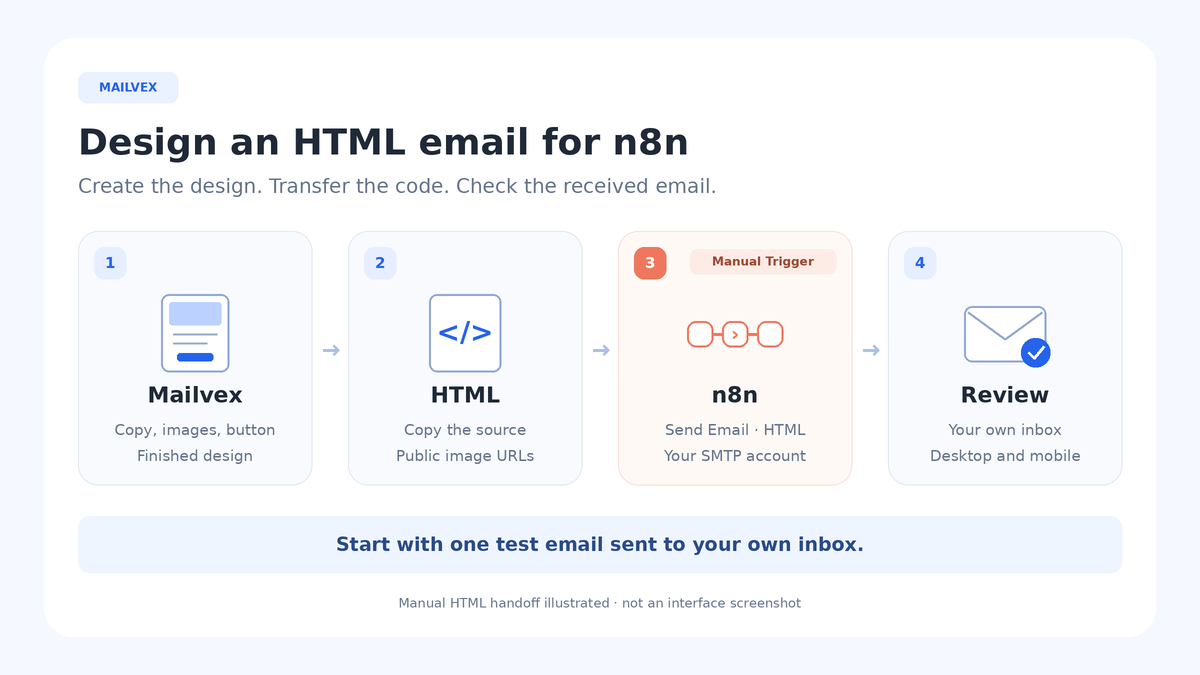
4. Configure Manual Trigger and Send Email in n8n
Create a workflow. Add Manual Trigger, add Send Email and connect them. These two nodes are sufficient for the initial run. You do not need an automatic trigger or to publish this workflow for a manual test.
In Send Email, select Operation = Send for an ordinary email send. Connect an SMTP credential using your provider’s settings. Keep passwords and other secrets in that credential, never in the HTML, subject or exposed node text. If a certificate error occurs, investigate the server configuration instead of disabling certificate verification.
In Credential to connect with, select an existing SMTP connection or create one. Enter User, Password, Host, Port and connection security according to your email provider’s instructions. Your Mailvex password is not an SMTP password.
| Send Email field | Value for the first test |
|---|---|
| Credential to connect with | A saved connection using verified provider settings. |
| Operation | Send. |
| From Email | An authorized sender address. |
| To Email | Your own test inbox, entered explicitly. |
| Subject | A static subject, such as “We received your request”. |
| Email Format | HTML. |
| HTML | The complete code from “Copy HTML”. |
Paste HTML as a fixed value without switching the entire field to Expression. Leave CC and BCC empty. The first run will then target only your own address entered explicitly.
Set Subject here: Mailvex’s email settings do not automatically populate the n8n field. From Email and To Email are also separate from the design. Keep your own recipient address fixed during the first test rather than mapping it from a request, spreadsheet or expression.
If you later choose Email Format = Both, prepare the text part manually as well. It should convey the same message and include the necessary link destinations. An email client may display that part. The main path in this guide uses HTML.
Under Options, you can add Append n8n Attribution and turn it off if you do not want the extra n8n footer. This is a separate setting: it does not remove Mailvex branding included under your plan.
5. Run the workflow and inspect the received message
- Recheck To Email. It should contain only your own test address.
- Click Execute workflow. This runs the chain and can send an actual message; it is not merely a design preview.
- Inspect Send Email in the workflow execution. If it fails, retain the error details and address the reported cause.
- Open your inbox. Check the junk folder if the message is absent from the inbox.
- Review the subject, sender, copy, images and every destination. Open the email on a phone and in clients relevant to your audience.
A successful node execution confirms that its operation completed; it does not prove inbox placement or identical rendering in every client. Mailvex previews and browser viewing also cannot replace checking the received message.
Troubleshoot a result that differs from the design
| Problem | What to check |
|---|---|
| HTML code appears as visible text | Check Email Format = HTML and ensure the code is in the HTML body field, not Subject or the text part. |
| Images are missing | Check that their URLs work without account access, that the files still exist and that the email client allows images. |
| {{first_name}} or another tag is visible | Inspect the exported version for unresolved variables and conditions. The preview may have used demonstration data. |
| Authentication or connection fails | Review the SMTP credential, host, port, connection security and authentication method supported by the provider. |
| The sender is rejected | Check that this connection permits the From Email address. |
| The node succeeded but no message is found | Check To Email, mailbox folders and any delivery logs available from your email provider. |
| Several messages arrived | Check repeated manual runs and the number of input items received by Send Email. |
Change one thing at a time and record the result. An SMTP failure does not require redesigning the email, and an incorrect image does not require changing authentication. Whenever the design changes, confirm that n8n contains the current HTML export.
Personalize the subject after the static test
Once the basic send works, add data to Subject as a separate step. Supply a test input field to Send Email, such as a first name or request number. Switch Subject to Expression and drag the relevant field from INPUT using n8n’s data mapping. Inspect the evaluated value before sending.
Define a neutral subject for a missing or empty field. Test both cases: populated data and no data. Keep the initial email body static. Do not replace arbitrary HTML fragments with unchecked form values; preparing safe dynamic content is a separate implementation task.
Move the checked design into your working automation
Connect your real event source after the test. Check the incoming data and how many items reach Send Email in each execution: multiple input items can lead to multiple messages. Confirm that duplicate events, manual reruns or retries after a failure do not create an unwanted second message for one request.
Only then replace your test address with a validated recipient field. Before using the workflow, agree on the message’s purpose, current contact details, footer content and access to the SMTP credential. Keep the n8n workflow and Mailvex source organized so you can identify the design version used in the automation.
Frequently asked questions
Do I need a dedicated Mailvex connector for n8n?
Not for this workflow. Copy the HTML into Send Email manually. Transfer later design changes by exporting again and replacing the pasted code.
Do I need to publish the workflow for the test?
The described Manual Trigger workflow can run with Execute workflow. Configure automatic execution separately after the manual check.
Will Send Email automatically fill Mailvex variables?
Do not rely on that. Replace variables manually for the first email, then configure and verify dynamic fields through n8n.
For another notification, start with a Mailvex template and adapt the content. Check each new export with the same manual workflow.
Browse email templates