
How to rebuild your email from a screenshot and prepare the HTML
Turn a saved image into an editable draft, add the missing assets and links, and review the email before export.
Mailvex · 24 October 2026 · 8 min read
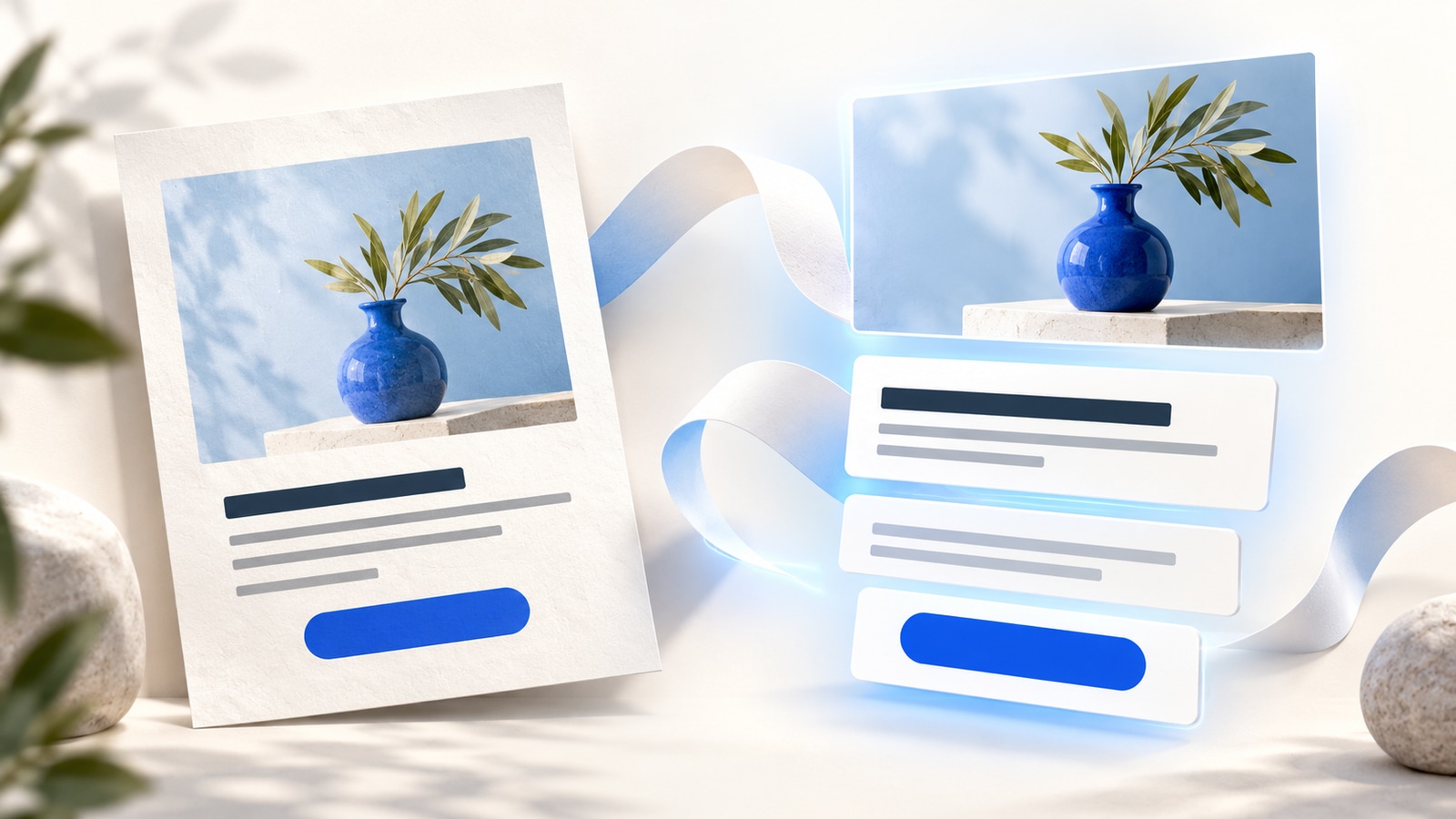
You need to reuse a previous campaign, but the editable project is missing. A saved screenshot still shows the layout, product offer and button. Mailvex can use that image to recognize the email structure and visible text, create a draft, and let you make changes before exporting HTML.
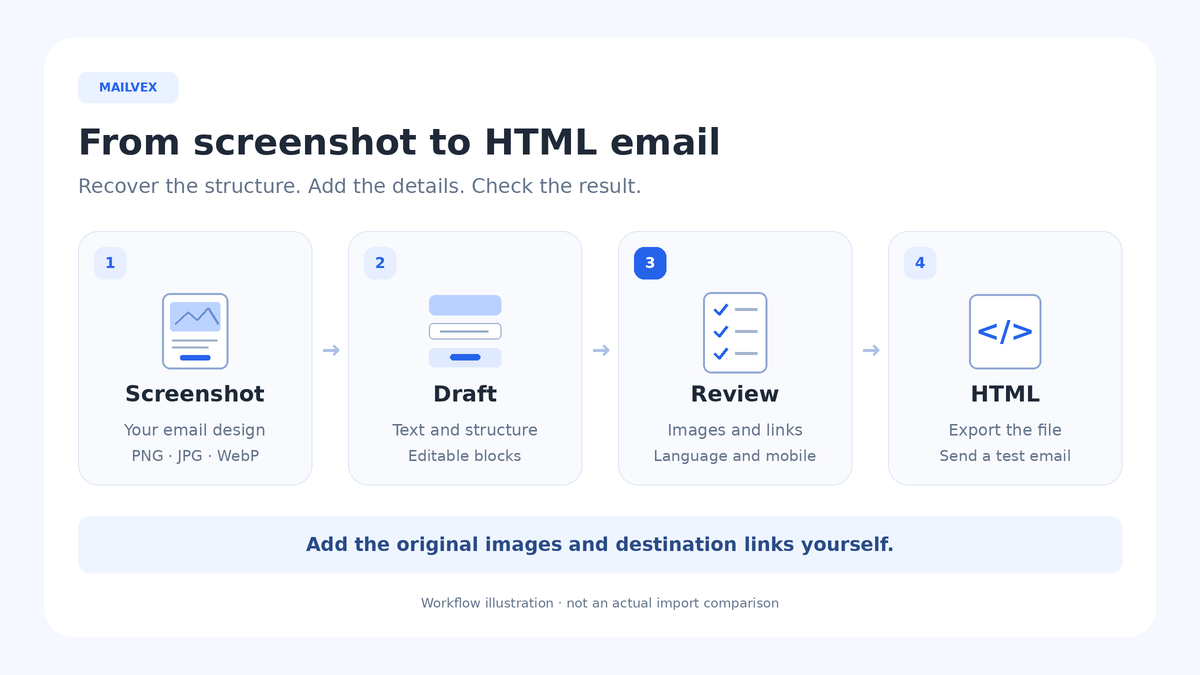
Recognition produces a starting point. A screenshot contains no original code, button destinations or separate image files. Add your assets, replace links, check the content and review the narrow layout before reusing your email.
What a screenshot can help you rebuild
Visible headings, paragraphs, buttons and their positions give recognition a basis for suggesting email blocks. Small text can be misread, and a complex composition may become a simpler structure. Review the editable draft without expecting pixel-perfect recovery. Recognition has a block limit, so check that a long email includes every section and the end of the layout.
| Original element | What to check in the draft |
|---|---|
| Headings and body copy | Compare wording, punctuation, line breaks, product names and numbers. |
| Block order and styling | Review the sequence, columns, spacing and emphasis on the main action. |
| Photos, logos and icons | Add your source files manually. These assets are not extracted from the screenshot. |
| Buttons and other links | Enter real destinations. A # placeholder does not open the intended page. |
| Subject, preheader and email language | Review these separately; the image does not reliably establish their settings. |
Import also does not automatically translate the email. If you need another language, prepare and review that copy separately. Check both the visible content and the email language setting, regardless of which interface language you use.
1. Prepare a usable screenshot
Choose a clear image of your own email that shows readable text and the intended block order. Include the footer where possible. If the capture contains only the top section, you will need to rebuild the missing sections yourself. Enlarging a small, blurred image will not recover letters that are no longer visible.
- Use PNG, JPG or WebP, up to 10 MB. These are the formats accepted by the import window.
- Crop browser controls, the inbox list and other screen areas that are unrelated to the design.
- Remove recipient names, email addresses, order numbers and other personal or confidential information before uploading. The screenshot is sent for processing.
- Collect the original product photos, logo, icons and current destination URLs separately.
- List the changes needed for the new campaign: offer, price, dates, button and footer.
Check your available AI allowance before recognition. AI usage and export have separate plan conditions. Creating a draft does not confirm export availability; check the current conditions in your account.
2. Create the draft in Mailvex
- Sign in to an account with a verified email address. On the dashboard, click “Create email”. In “New email”, choose “Import from screenshot”.
- Drop the prepared file into the upload area, or click the area to select the image.
- Enter a useful internal “Email name”, such as “Product campaign — updated offer”, so you can distinguish this draft from the old version.
- Click “Recognize” and wait for the result. A progress message is not confirmation that the import has finished.
- Review the recognized block list. An image slot identifies a place you will need to fill with an asset.
- Click “Open in editor” to review and edit the email.
If recognition fails, read the message. File format, file size and AI limits require different actions. Improve an unclear source image before trying again; address the cause instead of repeating the same upload.
3. Review structure and content
Keep the screenshot beside the editor and compare the email from top to bottom. Check the presence and order of sections first, then the text, then detailed spacing. This avoids polishing a block that needs to be replaced.
- Check the brand name, heading, offer and button labels. Pay particular attention to prices, currencies, percentages and dates.
- Look for missing paragraphs, incorrectly combined text and unwanted line breaks.
- Review the text hierarchy. Body copy should remain readable, and a secondary note should not overwhelm the offer.
- Choose the required “Email language” in the left panel. New drafts default to Russian. Review the entire footer: generated service text may also be Russian. Import does not automatically translate it.
- Set the subject and preheader deliberately. The internal draft name, the inbox subject and the accompanying preview text serve different purposes.
Use the preheader to complement the subject: explain what a product selection includes, for example. Remove obsolete discount promises and unrelated footer text.
With a readable screenshot of your own email and the original assets, you can create a draft and assess the manual work it needs.
Create a Mailvex account4. Update an old product email: an example
Imagine an email containing a logo, hero image, product description, price, button and footer. You want to keep its structure for a new offer. The following is an illustrative review scenario.
| Section | Change for the new campaign | Review question |
|---|---|---|
| Hero image | Insert the current source image and check its crop. | Does it show the product you are offering now? |
| Description and price | Update the product name, included items, price and offer conditions. | Does the information match the destination page? |
| Promotion dates | Review the copy, image and small print. | Is an old deadline still present elsewhere? |
| Button | Replace the placeholder with a real link and review its label. | Does it open the correct product or offer? |
| Footer | Check contact information, links and the unsubscribe setup for your sending platform. | Are the business details and service elements appropriate for this campaign? |
The screenshot helps recover the logic of the layout. It cannot make an old offer current. Check repeated information everywhere it appears: a price may be present in a heading, a banner image and a button label.
5. Add assets and real destinations
Fill the empty image slots with your own files. Logos and small icons also need to be added manually. Check each image’s proportions, crop and alternative text. Using the entire screenshot as the email leaves its text and buttons embedded in one image.
Review every button, linked image, text link and social icon. Recognizing what a button looks like does not reveal its original destination. Replace # placeholders and empty fields with your URLs. Configure service links and personalization variables for the platform that will send the campaign.
6. Review the narrow layout and export HTML
Check the email at a narrow screen width. Review column order, heading wraps, image widths and the main button. A screenshot records one size; it cannot reveal all of the original email’s responsive rules. Adjust sections that become cramped or unclear when the text wraps.
To download the file, open “Export HTML” and choose “Download HTML”. With Mailvex image hosting, keep the public image URLs; relative paths to files on your computer will not work in a sent email. After importing into your sending platform, check that image URLs open without signing in. Keep images used by sent emails available.
Save the reviewed email and use the HTML export available with your plan. After importing that HTML into your sending platform, check images, links, variables and unsubscribe behavior again. Send a test through that platform and review it in the email clients that matter to your audience. The browser preview does not emulate Gmail or Outlook or establish identical rendering everywhere.
When another starting point makes more sense
If you still have an editable Figma frame, use the Mailvex Figma plugin and review the imported result. A screenshot is useful when it is the only suitable visual source left. If the capture is heavily cropped, unreadable or substantially different from the email you now need, start with a suitable template and your own content.
Keep the assets, completed project and current copy together. Begin the next version with that editable design and review its offer, links and settings.
Common questions
Will the result be an exact copy?
Recognition produces a starting point for editing. Compare the text and structure with the screenshot, then adjust fonts, spacing and complex sections.
What if the original images are missing?
Find the previous campaign files, replace them with suitable assets or adapt the section. Screenshot import does not recover the original photos or logo files.
Can I send the entire screenshot as one image instead?
That does not restore editable copy or separate buttons. To change a price, text and link destinations independently, work with email blocks.
If the screenshot is incomplete or the old layout no longer fits the campaign, choose a ready-made template and adapt it to your new content.
Explore email templates