
Send a designed email after a form submission in Make: Tally, Gmail and Mailvex HTML
Build a request confirmation in Mailvex, capture a Tally response and configure Gmail delivery with a checked recipient and name.
Mailvex · 24 October 2026 · 13 min read

A person who submitted your form needs to understand what happens next. Design a clear confirmation in Mailvex, then use Make to receive the response and send the email.
This guide uses a specific route: Tally — Watch New Responses, followed by Gmail — Send an email. Transfer the HTML from Mailvex manually. First, send only to your own fixed address. After checking the message, map the recipient to the form field and enable automatic execution for new responses.
Only the greeting name changes in this example. The main content stays the same, and the customer’s question is not inserted into the HTML. This lets you check the form, recipient, design and one controlled substitution before expanding the scenario.
Prepare these items first
- A Tally form you can configure, plus a link for submitting new test responses.
- A Make account that can create a scenario and connect to Tally and Gmail.
- The Gmail account that will send messages. Complete the connection steps Make requires for your type of Google account.
- A Mailvex account with a verified email address and HTML export available under your plan. Check your current export allowance and restrictions.
- Your own test inbox, a logo, a contact page and agreed confirmation copy.
This process needs no dedicated Mailvex connector: the design is transferred as email code. Tally notifies Make of a new response, and Gmail sends through the selected connection. Set up service access through Connections; keep passwords and other secrets out of the HTML.
1. Create a form with identifiable fields
Use a consultation request for this example. Add three fields: Name, Email and Question, with Question collecting a short description of the request. Use a dedicated email field for Email so you do not have to extract an address from free text.
- Make Name and Email required for this example. Explain next to Email that the confirmation will go to that address.
- Use clear field names so you can recognize the data when mapping it in Make.
- Write a useful completion message. It can confirm the form was submitted without promising an unagreed response deadline.
- Prepare the form link. Submit early tests with your own address and a fictional question containing no confidential details.
Do not begin debugging with real customer contact details. Make the test recognizable: for example, “Alex”, your own Email and “Checking the request confirmation” as Question. This helps distinguish a new response from one captured earlier.
2. Design the confirmation in Mailvex
Create an email or choose a suitable template. Give it a useful internal name, such as “Tally form confirmation — Make”. A logo, heading, greeting, short explanation, one helpful button and a contact footer are enough for this message.
| Email section | Example content |
|---|---|
| Heading | Thank you for getting in touch |
| Greeting | Hello, NAME_SLOT! |
| Body | We received your request. Our team will review your question and contact you using the details you provided. |
| Button | Contact and help — linked to your actual website page |
| Footer | Your company name and current contact details |
NAME_SLOT is an ordinary text marker you add yourself. Include it once, in the visible greeting text. Do not place it in a button URL, image or styling setting. In Make, replace that marker with the name expression while preserving the surrounding HTML.
- Replace sample assets with your own images and check their alternative text.
- Set the button destination and other URLs. Remove or replace remaining # placeholders.
- Remove unresolved variables such as {{first_name}} and {{unsubscribe_url}}, replacing them with appropriate static copy or working links.
- Remove conditional block visibility. Apart from the name, this first email should be determined by the template itself.
- Review the email language, complete footer and wide and narrow layouts. Avoid promising a response time your team has not agreed.
A clear next step is enough for the confirmation. You do not need to copy the entire Question back to the customer automatically; it stays in the request data in this example. Including it later requires a separate review of which information you display and how it is transformed.
For each conditional block, open “Show condition (ESP)” in the right panel and turn off “Show on condition”. Changing visibility in the preview does not remove the export condition.
3. Export HTML and keep the version you will test
- Open “Export HTML” in Mailvex.
- For this scenario, leave “Variable format (ESP)” set to mailvex.
- Wait for the code, then click “Copy HTML”.
- Check the code for exactly one NAME_SLOT and remove unresolved {{...}} variables or conditions that determine the content.
Copying and downloading HTML count as export actions under your plan. One method is enough: if you need a file, save the already copied source as a plain-text .html file.
The mailvex profile preserves the variable format; it does not populate Tally data. Demonstration values in the preview do not become customer data in the export either. You will configure the name substitution separately in Make.
Use image URLs recipients can access. Mailvex mode retains links to hosted files. Self mode requires you to host images at the configured addresses. Keep files referenced by sent messages. Copying HTML does not transfer those images to Gmail as separate attachments.
If the design is still missing, prepare a simple confirmation in Mailvex and continue to Make with the completed HTML.
Create a Mailvex account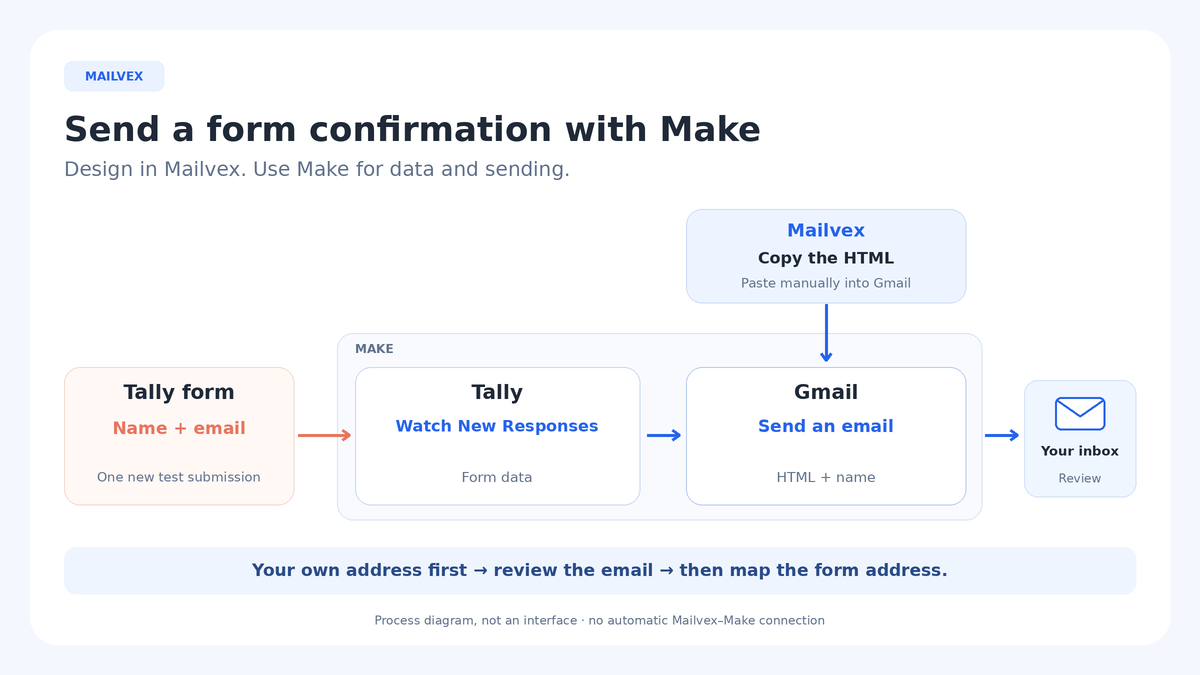
4. Connect Tally and capture one test response
Create a scenario in Make. Add Tally and choose Watch New Responses. This module receives new form responses through a webhook: an event notification Tally sends to Make.
Keep Immediately as data arrives off until the manual tests are complete. If the scenario was already running and you are changing its template, turn the switch off and save first. Submit each new response after Run once, and do not run another copy at the same time.
When creating the connection, select Tally OAuth and authorize the intended account. Use the published form available through its public link.
- Click Create a webhook and enter a recognizable Webhook name.
- Under Connection, select an existing Tally connection or click Add and complete authorization.
- Select the correct form in Form ID. Check the name carefully if you have similar forms.
- Save the webhook, the module settings and the scenario.
- Keep only Tally in the scenario for now. Click Run once, then submit a new response through the form.
- Open the module’s execution output and inspect Name, Email and Question. Locate the actual fields under Fields by ID using your test values.
No email is expected at this stage: you are checking data capture only. An earlier response in the history is not a fresh event. For a repeatable test, start listening with Run once and submit the form afterward.
Identify the field that actually holds the reply address. The connection owner’s email and the submitted Email can be different values. The eventual recipient must come from the form field you have verified.
5. Add Gmail and fix the recipient to your own inbox
Add Gmail — Send an email after Tally. Select the sending Google account’s Connection. For a new connection, click Create a connection, then Sign in with Google, authenticate and confirm access following Make’s prompts.
| Gmail setting | Initial value |
|---|---|
| Connection | The authorized sending Google account connection. |
| To → Add recipient → Recipient email address 1 | Your own test address, entered manually. |
| Subject | A static subject, such as “We received your request”. |
| Body type | Raw HTML. |
| Content / Body contents | The complete HTML copied from Mailvex. |
Leave CC recipients and BCC recipients empty. For the first test, use the connected account as the sender and add no extra recipients. Leave Signature content empty when your design already includes a signature.
The body field may be labelled Content or Body contents. Paste the code there with Raw HTML selected. Enter the subject separately in Subject; Mailvex’s subject setting does not automatically populate the Make field.
While To contains your fixed address, a different Email value in a test submission should not change the recipient. Check that no previous mapping remains in the recipient field. This order lets you review the message before allowing a submitted address to control delivery.
6. Insert the name as safe text
Find NAME_SLOT in the HTML body field. Delete only the marker, preserving the greeting and surrounding markup. Place the cursor where the marker was. In Make’s mapping panel, open Text and binary functions and insert escapeHTML. Inside its argument, select the actual Tally name field under Fields by ID from the output-data tab, using your captured test.
Use the field token Make inserts through the interface. Do not type an invented module number or copy another scenario’s field path. The expression should take the submitted name, pass it through escapeHTML and place the result in the greeting text.
- Escape only the name value. Applying escapeHTML to the entire message turns the markup into visible text.
- Keep the substitution in ordinary text, never in href, src, style or another attribute.
- Do not map Question or the whole response object instead of the name. The result should be one clear string.
- Review the missing-name case separately. A required form field helps collect the value, but unexpected empty data still needs handling in a working scenario: stop the send or provide a neutral greeting.
Keep a separate copy of the original HTML with NAME_SLOT. Pasting a fresh Mailvex export over the Gmail body can remove the previous mapping. Reinsert the name expression and repeat the test whenever you replace the template.
7. Test the full route, then map the recipient Email
- Confirm your fixed Recipient email address 1 and save the scenario.
- Click Run once, then submit a new form response with your own email address and a recognizable test name.
- Inspect the Tally and Gmail execution results. Confirm they belong to this submission and read any error details.
- Find the message in your inbox, including the junk folder. Review the sender, subject, name, images and every destination.
- Open the message on a phone. Check that a long name does not disrupt the heading or button.
- Run a separate name test with characters such as “Alex <test> & team”. They should appear as text without changing the email markup.
A successful module status does not establish inbox placement or identical rendering in every client. Judge the received message. Mailvex previews help with design review but cannot reproduce every condition in Gmail, Outlook and other email applications.
Once the fixed-address test passes, return to Recipient email address 1. Delete your address and map the verified Tally Email field from Fields by ID. Keep the other settings unchanged. Run once again and submit a fresh response using your own address. This checks recipient selection from the form data.
8. Enable sending for new responses
Before activation, inspect this webhook under Webhooks → Queue. Check for pending test events: they can also cause messages to be sent when processing starts.
After checking the content and mapped Email, save the scenario, turn on Immediately as data arrives and click Save. New responses to the selected form can now trigger Gmail automatically. Inspect the initial runs in Make’s execution history.
Before enabling it, check for a second active copy of the same scenario. Repeated submissions, manual reruns or repeated event processing can create additional messages. Decide how your production workflow will recognize a request it has already processed; the basic two-module route does not itself establish duplicate prevention.
After a design change, transfer the new HTML manually, restore the name mapping and repeat the test. Updating Mailvex does not change the body already saved in the Gmail module.
Troubleshoot the result
| Symptom | What to check |
|---|---|
| No Tally test response arrives | The correct Form ID, saved webhook and a new submission made after Run once. |
| Name or Email is missing from mapping | Fresh Tally execution output and the real fields under Fields by ID. |
| The recipient is unexpected | Recipient email address 1: the intended fixed value or correct form field, with no extra recipients. |
| The email displays HTML code | Body type = Raw HTML; escapeHTML is applied only to the name, not the document. |
| NAME_SLOT or {{first_name}} is still visible | The marker was replaced with an expression and old variables were removed from the exported version. |
| Images are missing | Image URLs work without account access, files still exist and the email client permits their display. |
| Duplicate messages arrive | Repeated responses, manual reruns, active scenario copies and execution history. |
| Gmail reports an error | The Connection state, account permissions and the exact error details in Make. |
Frequently asked questions
Do I need an AI module between Tally and Gmail?
The two described modules are enough for a consistent confirmation with a name. The HTML is prepared beforehand and the name comes from the submitted response.
Why not insert the name without escapeHTML?
A form field contains user-supplied text. Escaping preserves its characters while preventing them from being interpreted as markup in that greeting position.
Can I enable automatic sending immediately?
First check the fixed-address message, then the mapped Email. Enabling the schedule turns new submissions into sending events, so identify recipient mistakes during the manual test.
Does this work unchanged with any form or email provider?
This guide covers Tally and Gmail. For another combination, verify its trigger, data structure, connection and HTML body format separately. The design can still serve as your starting point.
For another notification, choose a Mailvex template and adapt the copy to its event. Check the recipient and complete sending route again before enabling it.
Browse email templates