
Supabase Auth email templates: signup confirmation and password reset
Design two emails in Mailvex, preserve their working authentication links and test each action through your existing app.
Mailvex · 25 October 2026 · 12 min read
Signup-confirmation and password-reset emails should clearly identify your product and explain the next action. You can create their visual designs in Mailvex, then transfer the HTML into Supabase Auth templates. Supabase continues to generate the links and send the messages; the design change must preserve the authentication behavior that already works.
This guide updates two separate templates in sequence: Confirm sign up, followed by Reset password. Test confirmation before changing recovery. The instructions draw on documentation and source inspection dated 24 October 2026; we did not send a Supabase email. Complete the acceptance checks in your own test environment.
Use this route with an already working application
Start with an app using a hosted Supabase project where signup confirmation is enabled, password recovery completes successfully, and custom SMTP already sends messages. Use staging and mailboxes you control. This route uses the dashboard’s normal templates without an active Send Email hook. If a hook handles delivery, adapt its renderer separately rather than disabling a working setup to change the design. Before changing the design, complete both flows with their current templates and record the baseline results.
Built-in SMTP is restricted to authorized team addresses and low, changeable limits. Local CLI and self-hosted installations use different configuration paths. If the editor is read-only, check project sender requirements and your access; Pro is not a universal requirement for this tutorial. Changing email styling cannot repair a confirmation or recovery flow that was already broken.
1. Back up both templates and their action expressions
In the Supabase dashboard, open Authentication → Email Templates. Before editing, save Subject and the complete Body source separately for Confirm sign up and Reset password. Label each backup with project, email type and date. Copy the exact action href expression from each working template source. Never copy it from a received message: that contains a live, single-use recipient link.
The replacement below applies when each relevant baseline uses {{ .ConfirmationURL }}. Each email type supplies its own action. For an existing SSR/PKCE callback, .TokenHash route, {{ .Token }} OTP layout or Go conditional structure, preserve the existing expressions and behavior with your developer. Do not replace those with the default link or construct an /auth/v1/verify URL yourself.
| Variable | Purpose |
|---|---|
| .ConfirmationURL | The action URL for the relevant Auth email |
| .SiteURL | The application’s base URL, not a replacement for an authentication action |
| .RedirectTo | A requested return destination, not an authentication-link substitute |
2. Design two clear, distinct messages
Create your own Mailvex email from a simple single-column template. You need a verified account email and available export allowance. Use a logo, a clear heading, a short explanation and one primary button. An illustration is optional: the purpose and action should remain understandable when images are blocked.
Use the built-in Centered button for the action. Under Visibility, turn off Hide on mobile and Hide on desktop for the button and its containing blocks. This instruction concerns the standard block, not arbitrary button markup imported from elsewhere.
| Element | Signup confirmation | Password reset |
|---|---|---|
| Subject | Confirm your registration with our service | Your password change request |
| Heading | Confirm your email address | Choose a new password |
| Body | You started creating an account. Confirm this address to continue using your account. | We received a request to change your password. Open the secure page in our app to choose a new password. |
| Button | Confirm email | Change password |
| If this was not you | If you did not create an account, do not confirm this registration. | If you did not request this change, do not use the link. Contact support if you need assistance. |
Replace generic wording with your product name and match the copy to your application’s behavior. Keep the reset design as a separate project in the same visual style, so later edits cannot confuse the two messages. Password entry belongs in the app, never in the email. Enter the subject separately in Supabase: a Mailvex heading or preheader does not set Subject automatically.
Prepare two recognizable designs with concise explanations and one primary action in each.
Design your emails in Mailvex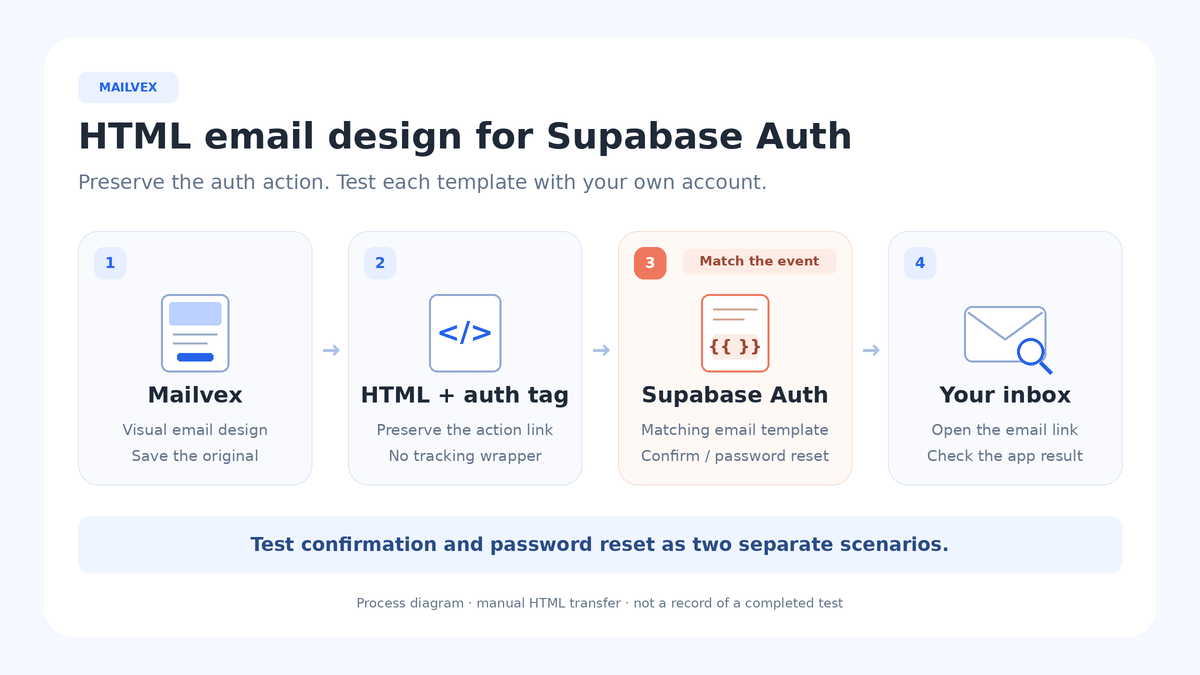
3. Prepare a clean temporary link and export
Remove demonstration variables and unnecessary ESP conditions from each project. For a conditional block, use Show condition (ESP) in the right panel and turn off Show on condition. Preview visibility simulation does not remove the condition. These editor controls are separate from the Go logic of an existing Supabase template.
In the left panel, open Settings → UTM tags and turn off Add UTM to all links. Then re-enter this exact temporary destination in the primary button, without parameters, a fragment or extra spaces. Turning off automatic UTM does not remove parameters already saved in the URL:
https://example.invalid/MAILVEX_AUTH_ACTION
This reserved-domain address deliberately does not work. Use it only for the authentication button, never as a final published destination. Do not place it in images, support links or unrelated elements. Never paste real confirmation URLs, tokens or recipient links into Mailvex or public examples.
Disable the header’s “View in browser” link → Show link, and remove manually inserted links to older hosted previews. A separate Mailvex snapshot does not receive Supabase substitutions and would retain the temporary destination. Disabling this switch does not establish that previously created shared links have been deleted or revoked.
- Check the preheader, footer, image-blocked text and narrow preview. Retain any attribution required by your plan.
- Open Export HTML, leave Variable format (ESP) set to mailvex, and choose only Copy HTML. This profile does not connect Supabase or generate authentication data.
- Save the copied complete source as a plain-text .html file. Make a separate working copy for adaptation; another download action is unnecessary.
- Repeat for the second design. These are two distinct exports: check your allowance and retain both editable projects.
Images must load at public URLs without an editor login. Hosted-image mode retains links; Self mode requires you to upload the files to their intended host. Entering a base URL does not deploy them. Export does not automatically attach every image or guarantee indefinite availability.
4. Replace only the temporary authentication destination
Open the working HTML copy in a text editor that preserves quotes instead of displaying rich text. Use the complete document; do not split the body and CSS. For the already working default flow, find the exact full temporary URL and replace every occurrence with:
{{ .ConfirmationURL }}
The resulting link attribute in the source should be:
href="{{ .ConfirmationURL }}"
Replace all occurrences of that unique temporary address, not every href in the document. One visible button may contain an ordinary link plus an Outlook/VML destination. The number of matches depends on the design; do not assume it must always be two. Leave support destinations and image URLs unchanged.
- Searching for MAILVEX_AUTH_ACTION returns no matches.
- Every possible version of the authentication button uses the approved expression from the relevant baseline.
- No UTM suffix, tracking wrapper, extra parameters or percent-encoded braces were added.
- Text, images and ordinary links remain intact, and the adapted file belongs to the intended email type.
Review confirmation and reset separately; shared styling does not make their callbacks interchangeable. Go-template processing can remove the conditional VML branch, so the received HTML need not retain the original href count. The ordinary HTML action must remain accessible. Do not remove styles globally or manually rebuild the standard button: check its action and appearance in the received message.
Before testing, disable your SMTP provider’s email/click tracking that rewrites Auth links. The action URL should be sent without a tracking wrapper. This is a sender setting, not an instruction to disable recipients’ security scanners.
5. Update Confirm sign up and test registration first
In the correct Supabase project, open Authentication → Email Templates → Confirm sign up. Enter your subject in Subject. Switch Body to its source view, replace it with the complete adapted confirmation HTML, and use Save changes. Preview can help you inspect layout, but it does not establish a valid recipient link or successful account confirmation.
- Create a new test signup through your existing app using an eligible address you control. For an existing unconfirmed test account, use the app’s established resend-confirmation function. An invitation triggers a different email type.
- Inspect the received subject, copy, branding, button, support link and image-blocked view. Check a phone and the Outlook client you need.
- Use a fresh link once. Confirm the expected application origin and the account’s confirmed status. Keep the required browser context when your flow depends on it.
- If confirmation fails, restore this template’s previous Subject and Body and compare behavior. Leave the reset template unchanged for now.
This test sends real email and performs an authentication action. Repeated clicks on an old message are not a reliable design test. Request a fresh email through the app for another attempt. Do not put secret links into public screenshots or shared examples.
6. Update Reset password and complete recovery
After confirmation passes, open Reset password. Compare against its own backup and action expression. Enter the reset subject and corresponding adapted Body, then use Save changes. Reuse the visual structure if useful, while preserving the recovery template’s existing action semantics.
- Use an existing test account that you own. Request recovery through your application’s normal forgotten-password feature.
- Inspect the fresh email and its primary action. Do not copy that recipient URL back into the template.
- Open the application’s intended password form, set a new password there, and verify a subsequent login. Clicking the email alone does not complete a password reset.
- Check the subject, unexpected-request wording, mobile layout, image and support destination. Record these results separately from confirmation.
A recovery-request response does not always mean an email was sent to an unknown address. Test an existing account that worked before the design change. If the application cannot complete recovery, repair that behavior first; a new HTML template does not implement it.
Troubleshoot the email and the authentication action
| Symptom | Next check |
|---|---|
| The temporary destination remains | Search the entire adapted source for MAILVEX_AUTH_ACTION and confirm the correct version was saved. |
| The button fails only in Outlook | Check every source authentication href and disabled hiding on the button and parents. After processing, inspect the retained ordinary link. |
| A link is invalid or expired | Request a fresh link. Reuse, provider rewriting or security-scanner prefetch may be involved; do not blindly disable protection. |
| The destination is localhost or the wrong host | Compare Site URL, allowed redirects and the actual callback. Avoid fixing this with excessively broad wildcard rules. |
| No email arrives | Check the existing recovery account, SMTP, sending limits and whether the recipient is permitted. |
| The old design still appears | Check project, email type, saved changes and any active Send Email hook. |
| An image is broken | Open its public URL without authentication and confirm the asset still exists. |
| Preview looks correct, but confirmation fails | Evaluate layout and authentication separately; compare the action expression with the working baseline. |
Maintain versions and a narrow rollback path
For each email type, keep its Mailvex project, original export, adapted HTML and previous Subject/Body. Every design revision needs another export, marker replacement and link check. Editing the visual project does not update Supabase automatically. Keep images available while received messages still reference them.
If a revised template fails its test, restore only that template’s previous Subject and Body and retest before making broad production changes. The rollback does not require changing working SMTP, hooks, redirect policies or the other template. Establish the particular cause of the difference first.
Frequently asked questions
Will Mailvex send these messages?
No. It provides the visual source and HTML in this workflow. Your configured Supabase authentication system and SMTP handle links and sending. No dedicated Mailvex-to-Supabase account connection is required.
Can the button contain the Go expression directly?
The inspected Mailvex path can preserve that literal expression; it would be inaccurate to claim it must break. This guide uses a temporary destination and explicit post-export review so every form of the button link is checked before publication.
Do four article languages make my app’s emails multilingual?
No. Define template language and version-selection behavior separately in your app. Translating this tutorial does not add automatic language selection to Supabase or translate your Mailvex project’s text.
Is the template enough to implement password recovery?
No. The application must handle the return and let the user set a new password. Acceptance requires a received message and a completed authentication action, not merely an attractive preview or successfully saved HTML.
Start with a simple template and create a consistent pair for signup confirmation and account recovery.
Choose an email template