
Shopify order confirmation design without replacing its Liquid logic
Add one static Mailvex introduction to an existing notification while preserving order details, payment, delivery and the original action.
Mailvex · 25 October 2026 · 11 min read
You can add a small branded introduction to Shopify’s order confirmation while retaining its working order, payment and delivery content. Mailvex supplies the visual source for that block. You will transfer only its reviewed HTML; the existing Shopify notification remains the functional foundation.
For a logo or accent-color change, Shopify’s own settings may be sufficient. The route below is useful for a separate text panel and requires careful source editing. It is a manual adaptation, without a Shopify export profile, account integration or replacement of the entire notification.
This guide is for a merchant or designer authorized to edit notifications. Start with an existing working Order confirmation. Documentation and a local block-rendering check were reviewed on 25 October 2026; we did not export from an account, save a Shopify template, place an order or send an email.
1. Preserve the exact current version
Before editing, copy the current subject and complete HTML body into separate local files. Include store, language, date and version, for example order-confirmation-en-before-20261025.html. Keep another copy for editing. A screenshot is not a source backup: recovery needs the original expressions and markup.
Backup
Save the current code.Record who maintains the template and which custom scenarios it serves. If order information is already wrong, restore working behavior first; a visual insertion cannot supply missing data. Returning to a standard template is also different from restoring this shop’s existing customization.
2. Define what stays in Shopify
Do not rewrite Liquid for this task. Retain the original expressions, filters, assignments, captures, loops and conditions with their matching endings. Do not translate variable names or manually reconstruct totals. The email must continue receiving its data through the established template logic.
Keep item details, discounts, taxes, addresses, payment instructions, shipping or pickup messages, the existing order-status action and footer. Do not route the whole Shopify notification through Mailvex import as a supposed preservation method. The new module contains no customer data, dynamic images or additional order button.
3. Create one separate static Mailvex block
Use an account with a verified email address and available creation/export allowance. Open Templates → Create template, choose Plain and No brand book. Enter shopify-intro-en-v01 in Name, then select Create. This is a separate project for the panel, not an import of the existing store notification.
- If the new project contains starter content, remove it using Delete block. This affects only the new Mailvex project.
- Under Blocks, add exactly one Heading + text block.
- Enter a static brand name in Heading and a short neutral paragraph in Text.
- Under Visibility, leave Hide on mobile and Hide on desktop off. Keep Show condition (ESP) → Show on condition off.
- For the first sample, add no image, link, button, separate footer, mobile override or special dark-mode design.
Use Arial, a 22 px heading, 16 px body text and 16 px padding on each side for this reproducible example. Set Heading size (px) to 22. Choose left alignment, a quiet light background and contrasting text. These are sample design choices, not required Shopify dimensions.
| Field | Fictional-store example |
|---|---|
| Heading | Cedar House |
| Text | Thank you for choosing our store. Your order information appears below. |
| Background and accent | Light #F5F8FE with a blue #2563EB heading |
Replace the name with your actual brand and compare the paragraph with the existing message: two identical thank-you sections are unnecessary. Avoid unconditional statements that payment was received, an order shipped or pickup is ready. Do not promise a delivery date. Static wording must not contradict messages selected for a particular order.
Create the introduction in a separate project and keep it available for later design revisions.
Create a block in Mailvex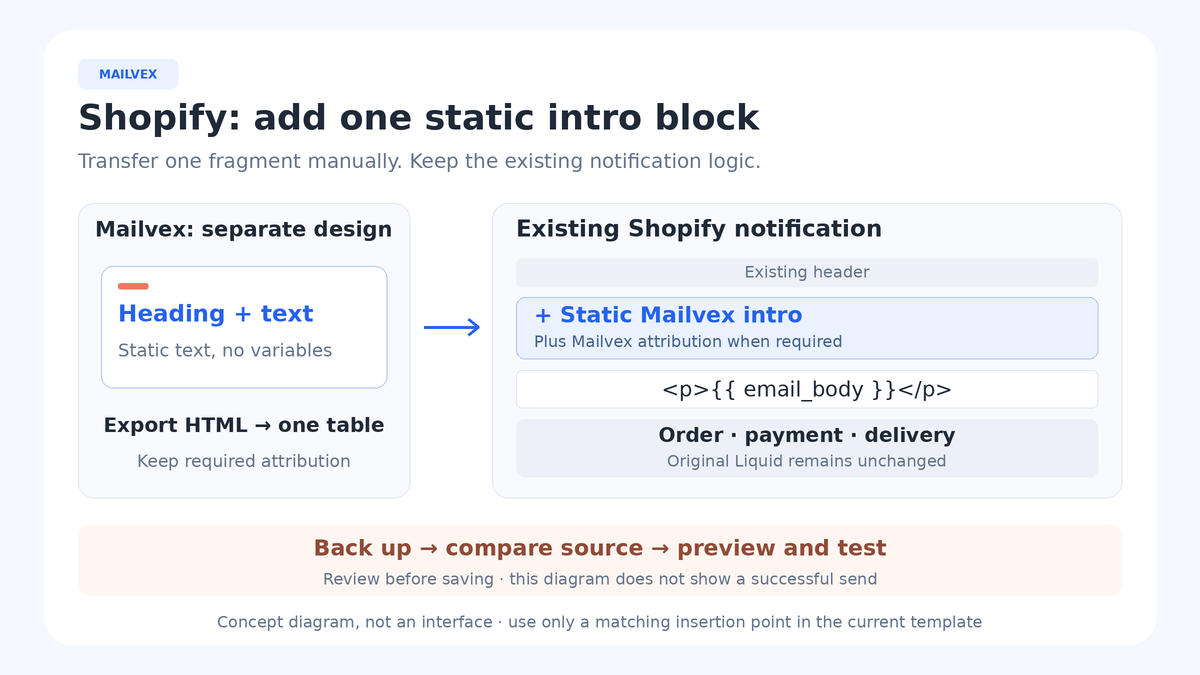
4. Download the HTML once
Open Export HTML, leave Variable format (ESP) set to mailvex, and choose Download HTML. A second copy-code action is unnecessary. Preserve the complete downloaded file alongside a working copy. Check your allowance before exporting again: editing the project does not update an already downloaded file.
There is no Shopify profile here. Selecting mailvex does not validate Liquid or supply order data. This first example has no links or images, so hosting and UTM changes are unnecessary. Review the panel at wide and narrow preview widths, then evaluate it within the actual notification.
5. Extract the complete block table, not the document
Open the downloaded file as source text and find the distinctive Cedar House heading or your own replacement. Select its nearest enclosing table with role="presentation", from the opening table tag through the matching closing table after the paragraph. This minimal text block contains no nested table.
Exclude the outer email container, DOCTYPE, html, head, body, hidden preheader and global CSS. The following local-renderer example illustrates one block’s boundaries. It is neither a complete Shopify template nor a customer-account export; your actual block class will differ:
<table role="presentation" width="100%" cellpadding="0" cellspacing="0" border="0" bgcolor="#F5F8FE" style="background:#F5F8FE" class="fr-block frb_stage10-static-intro"> <tr><td style="padding:16px 16px 16px 16px"> <h1 class="mob_font_sm" style="margin:0 0 12px 0;font-family:'Arial', Arial, sans-serif;font-size:22px;font-weight:700;color:#2563EB;line-height:1.2;text-align:left">Cedar House</h1> <p style="margin:0;font-family:'Arial', Arial, sans-serif;font-size:16px;font-weight:normal;line-height:1.6;color:#2D3436;text-align:left">Thank you for choosing our store. Your order information appears below.</p> </td></tr> </table>
Extract your own table with its text and inline styles. If you cannot confidently identify the paired boundaries, ask the template maintainer to do it. Copying the entire body instead can introduce unwanted containers and change the surrounding notification.
Separately inspect the real export for mandatory Mailvex attribution. If present as another table, retain that complete table alongside the intro during transfer. The example above omits it because it demonstrates the block renderer; that does not authorize removing required attribution from your export. An entitlement permitting unbranded output may omit the table. Do not decide from preview alone.
6. Locate a valid insertion point in the current notification
In Shopify, open Settings → Notifications → Customer notifications → Order processing → Order confirmation → Edit code. Work from the same source version you backed up. Find this exact line:
<p>{{ email_body }}</p>
Proceed only when it occurs exactly once in a normal visible HTML content cell and you understand the surrounding structure. If it is absent, repeated or part of unfamiliar custom logic, stop this insertion. Do not manufacture the anchor or select an arbitrary closing tag instead.
Place the complete new module immediately before that line. Leave the original paragraph and subsequent logic in place. Do not insert the table inside the paragraph, a capture, a loop or a Liquid condition. Do not open a cell that Shopify’s code closes, or bring unrelated closing tags into the module.
Mark the beginning of the added region with your own HTML comment:
<!-- MAILVEX-INTRO START -->
After the complete intro and required attribution table, when present, add the closing marker below. The original Shopify paragraph must remain outside this marked region:
<!-- MAILVEX-INTRO END -->
These comments identify the source change. They are not Shopify syntax or a substitute for a backup; processed email may not retain comments. Only newly added material belongs between them, never the store’s existing functional code.
7. Compare the source before and after
| Area | Expected result |
|---|---|
| New module | Only complete intro and required attribution tables were added |
| Surrounding HTML | Original cells and tables remain balanced |
| Liquid | Original expressions, loops and conditions are unchanged |
| Order and actions | Items, totals, payment, delivery, status link and footer remain |
| Copy | No unsupported status claim or repeated original heading |
| Subject | No separate unapproved change |
Compare the two source files. Outside the marked region, investigate every unexpected difference. If editing reformatted a large section, understand that diff before continuing. Preserving a variable’s spelling is insufficient when its placement or enclosing HTML has changed.
8. Check the combined notification
Keep Email subject. Edit Email body (HTML). Preview unsaved changes; Send test email targets your admin-login address. If correct, close preview, then Save.
Confirm that you control that mailbox before sending. Review the complete received message rather than only the panel’s color. Inspect narrow and wide layouts, heading wraps, spacing before the original copy and the existing order action. Compare the same available sample before and after insertion.
- The new text does not cover order information or make the original status action difficult to find.
- Long product names and multiple items remain readable with their totals.
- The introduction fits the shop’s supported payment and delivery states.
- The panel is visible and unclipped on required devices without changing the entire email width.
One demonstration dataset does not establish coverage of every branch. Record the scenarios inspected and those still pending. Do not mark untested payments, delivery types or languages as accepted merely because a preview looks tidy.
9. Verify the order event separately when required
Test order
Inspect the resulting notification.An authorized operator can use an already configured appropriate test checkout with an address they control. This is separate from viewing HTML. Agree the action beforehand: a small design change is not a reason to alter live payment settings, make a real purchase or trigger fulfillment without authorization.
Check scenarios applicable to the shop: multiple items, a discount, pending or completed payment, shipping or pickup, where the environment can reproduce them. Not every testing method simulates every state. Record the scenario, received message and differences from the baseline. Do not assume zero cost or complete coverage from one order.
If the result is wrong
| Symptom | Response |
|---|---|
| No unique suitable paragraph exists | Have the current template developer choose the location; do not replace the whole body |
| The message is wider or broken | Review local table boundaries and exclude outer containers or global CSS |
| Liquid appears literally or errors occur | Compare source outside the added region and restore unintended changes |
| Order information disappeared | Restore the complete backup and check the original behavior |
| The panel repeats existing copy | Revise only its neutral wording |
| Required attribution was omitted | Restore its complete table from the actual export |
| Another language looks wrong | Check that template’s text and line lengths separately |
For an exact rollback, restore the saved subject and complete body of the affected notification. Default means a standard template, not your backup. Check the original scenario after restoring it before attempting another insertion. Do not change working order logic to disguise a layout problem.
Maintain the small block over time
Keep the Mailvex project, full export, extracted fragment and Shopify version with a date and owner. Later revisions may affect only the small marked area, but the new export and required attribution still need review. Mailvex edits do not automatically update Shopify.
When the store updates its notification or adds a payment method, recheck the insertion point and source comparison. An older panel version is not permission to overwrite newer Shopify logic with an old template. Assign ownership of both the design and the functional notification.
Frequently asked questions
Can I replace the complete notification with Mailvex HTML?
This procedure covers only a static introduction. Full replacement needs separate implementation and tests for the store’s data, conditions and actions; a general marketing design does not recreate them.
Can I add a customer name or another button?
Keep the first version static and retain Shopify’s existing action. Dynamic elements and additional destinations expand the task and require review within the current template’s context.
Will it exactly match the full Mailvex preview?
Not necessarily. You are transferring a local table without document-wide styling into another notification. Simple typography reduces dependencies, but the combined result still needs a received-message check.
Choose a visual direction for a small module while keeping the store’s functional notification as its foundation.
Browse email templates