
How to choose an HTML email editor for your sending platform
Compare Mailvex, Stripo Editor, RGE Studio and Topol PRO, then evaluate the same sample through your existing sending system.
Mailvex · 24 October 2026 · 12 min read

Keep your sending platform if it already handles contacts, automations and delivery. A standalone visual HTML email editor can provide designs for that existing system. The decision is whether the process remains practical after the next correction, with images, links and an editable source project intact.
This guide is published by Mailvex and considers Mailvex, Stripo Editor, Beefree App — now RGE Studio — and Topol PRO. We checked official documentation on 24 October 2026, without performing competitor-account exports. The findings support your evaluation exercise; they do not establish a universal winner.
Separate the editor, the sender and the embedded component
An editor produces the project and HTML. Your sender supplies recipients, resolves their data, handles unsubscribe requirements and sends the message. Check exactly what any connection between products transfers. HTML export alone does not provide a contact database or completed automation.
This comparison concerns standalone applications. Stripo Plugin, Beefree SDK and Topol Plugin embed an editor inside another application; their features and plans should not be attributed to Stripo Editor, RGE Studio or Topol PRO. For creating emails, start with the standalone product.
Four editors: starting conditions for a fair comparison
Start with a plan you would realistically use. An ongoing free option and a trial support different decisions. The figures below describe export conditions, not interface quality or rendering performance. Follow the official links to check the current terms before running your exercise.
| Editor | Starting option | Check for your workflow |
|---|---|---|
| Mailvex | Free includes Mailvex attribution | Remaining exports, visible attribution and repeat editing |
| Stripo Editor | Free includes HTML export | Your required format and specific ESP destination |
| RGE Studio | Starter includes a mandatory branded footer | Footer acceptance and image dependence on its CDN |
| Topol PRO | A trial followed by paid PRO | Ongoing access and hosted-image conditions |
A modest allowance may cover occasional emails; unlimited exports do not settle hosting, source ownership or team requirements. Check your sender’s connection separately. A product offering integrations does not establish that every destination is available on your chosen plan.
Want to include Mailvex in your shortlist? Use the same sample and check the complete path to your own inbox.
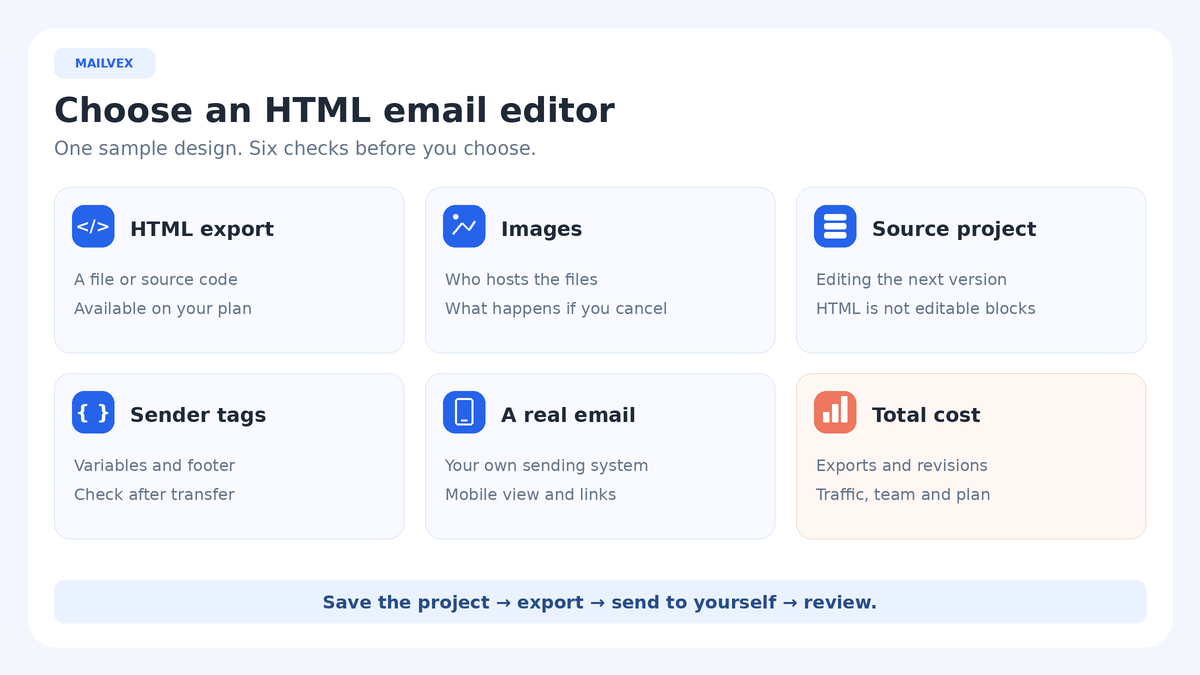
Try MailvexSix checks to make before choosing an editor
1. Usable HTML on the plan you intend to use
Check access to a file, source code or transfer to your particular sender. An export button does not confirm that every destination is included. Record the remaining allowance, repeat-export rules, mandatory branding and date checked: conditions can change.
2. Image hosting and continued availability
Locate images after transfer: the email may only link to the editor’s servers or your host. Check storage, delivery-traffic and subscription-ending conditions. Images visible inside your editor must also load for recipients without access to your account.
3. Repeat editing and the source project
Keep the project where its next editor can find it. HTML does not preserve the original collection of blocks, settings and assets as a portable project. Importing it elsewhere may not reconstruct those blocks. Agree who retains the source and makes changes.
4. Sender variables and required footer elements
Your sender determines the syntax for names, unsubscribe links and conditional sections. Establish where required footer elements appear and whether import duplicates them. Use static text for this initial comparison, so personalization errors do not obscure the design evaluation.
5. The message after an actual send
A narrow preview reveals some layout problems. Your sender can then process code, rewrite links or add a footer. Check the received message through your actual sending platform in relevant email clients, including Outlook if your audience uses it.
6. The cost of repeating the workflow
Count language versions, corrections, team access and image maintenance alongside campaigns. Record manual work after transfer. Rebuilding parts of a message for every correction can undermine an attractive plan. Define essential requirements before browsing impressive sample templates.
Exported HTML can still depend on the editor’s hosting
Deleting a logo from the editor’s library can break future loads in emails referencing its address. Downloading HTML and controlling its assets are separate requirements. Record resource addresses and assign responsibility for keeping them available after the project ends.
With RGE Studio, cancellation ends hosted-image access after the paid period. Downgrading to Starter is different: images remain available under that plan’s conditions. Topol PRO requires an active subscription to keep its hosted images available. Establish which situation applies before handing an email over to a client.
An archive containing local files also needs a hosting plan: those images must become reachable at public addresses used by the email. Do not assume every ZIP is self-contained. For the initial exercise, identify the actual image addresses, check access without authentication and assign responsibility after handover. Keep assets that are still referenced by previously sent messages.
Use the same sample: a seven-step acceptance exercise
Step 1. Fix the requirements and source materials
Use your own logo, one photograph, a short heading, two paragraphs and one button pointing to a real page you control. Choose a simple single-column layout without personalization. Use the same text and assets in each editor. Record your sender, important email clients, branding policy and the person responsible for future changes. These constraints make the comparison repeatable.
Step 2. Build the email and preserve its project
Create the sample using the editor, give it a recognizable name and save the source project. Check image alternative text, button readability and footer content. Record which elements remain ordinary editable blocks. If your working materials arrive as Figma designs or screenshots, separately try a representative example: supporting a starting format does not prove that every imported detail remains equally editable.
Step 3. Download HTML once
Check the available allowance before exporting. Choose one file-export action instead of also copying the code for the same exercise. Save the result with a date and version name, alongside a note about the plan and image settings. Confirm that you have HTML you can transfer to your sender, rather than only a link to a preview.
Step 4. Inspect the file and external assets
Open the HTML as text and locate the button destination and image addresses. Look for forgotten demonstration names, unresolved variables and temporary links. Open an image address without being signed into the editor. View the file in a browser for an initial visual check, but treat that as a way to catch obvious problems, not proof of email-client compatibility.
Step 5. Transfer the sample to your existing sender
Use your platform’s supported HTML mode, whether that means pasting source or importing a file. Do not paste source code into an ordinary rich-text field. Check the button, image and footer, including any service elements added during import. If your sending plan restricts HTML import, record that workflow constraint before assuming that a different design editor will resolve it.
Step 6. Send only to yourself and review the result
Set one recipient: your own address. Use your sending platform’s test-send process. Check the received message on a phone and in the desktop client you need: block order, heading wraps, button width, images and links. Also consider the image-blocked view. Record specific defects and whether they first appeared in the source project, imported version or received message.
Step 7. Change a heading and repeat the cycle
Return to the saved editor project, change one heading and download the revised output if your remaining allowance permits. Transfer it again and check the updated message. Editing the source does not automatically update HTML already pasted into another system. Record which settings you had to restore and whether a colleague could locate the correct version. This second pass tests repeatability.
Record acceptance criteria instead of inventing a ranking
Complete a separate copy of this table for each editor. Record observations: a hosting domain, the source project name or a specific defect. Do not turn an untested requirement into a “probably works” score. If verification needs a different plan, mark that as an unresolved condition of adoption.
| Criterion | Record | Acceptance condition |
|---|---|---|
| Export | Plan, balance, file and attribution | Format available; branding acceptable; allowance sufficient |
| Images | Resource domains and responsible owner | Public access works; hosting conditions understood |
| Source | Project name and editor access | Project can be found and its heading changed |
| Sender | Import method and added footer | Code accepted; links and required elements correct |
| Received email | Clients, devices and observed defects | No unacceptable defects in required clients |
| Repeat cycle | Manual steps and export consumption | Team can repeat the process within its budget |
Four campaigns × two languages × two exports per version equals 16 export operations, assuming each download counts separately. This illustrates a workload, not a universal billing rule. Budget for corrections and confirm the product’s counting policy: campaign count alone does not establish your required allowance.
Run the same exercise in Mailvex
Use an account with a verified email address and available export allowance. Start with a simple template, save your own project and replace the sample text. Remove unresolved variables and unnecessary ESP display conditions from this static example. Free exports include Mailvex attribution, so evaluate its appearance in the received message as part of the plan’s conditions.
- Open Export HTML. For this sample without personalization, leave Variable format (ESP) set to the mailvex profile.
- The Mailvex image mode retains hosted URLs; existing external assets may remain on external hosts. Self mode requires you to place files at the corresponding addresses. Entering a base URL does not upload assets to your server.
- Choose only Download HTML. Save the file and carry out the shared inspection and sending exercise.
- After changing the source project, download the current version and replace the HTML in your sender. Check that your available allowance covers another export.
The variable profile neither sends through the selected service nor supplies real recipient data. A personalized production design must use your sender’s syntax; demonstration values shown in a preview are not export data. If Figma or your own older screenshot is a useful starting point, test that separately. Imported drafts still need checks for editability, images, destinations and the final HTML.
Choose according to your actual situation
- Occasional emails for one person: compare the usable allowance and mandatory footer. A free plan makes sense when the complete exercise passes and leaves room for necessary corrections.
- Frequent revisions and language versions: compare the repeat cycle, paid conditions and image ownership. Include Topol PRO in this exercise if unlimited HTML exports are important to your workload. RGE Studio Professional also offers unlimited HTML/ZIP exports.
- A particular ESP is central to your work: evaluate Stripo Editor and RGE Studio against that exact transfer destination and plan. Your workflow establishes convenience, not a general integration count.
- Source designs arrive from Figma or old screenshots: include Mailvex if those starting points are useful, and record what still needs manual reconstruction.
- Your sender’s built-in editor already meets the requirements: you may not need another product. An extra transfer step is worthwhile when it provides the design, reuse or multi-sender workflow you actually need.
Frequently asked questions
Why does downloaded HTML still depend on the editor?
The file can retain links to the editor’s image servers. You have the HTML output, but resource loading still depends on those addresses. Establish hosting responsibilities and account-ending conditions before sending, rather than after deleting an account or its assets.
Can I move the visual project to another editor?
A system that accepts HTML may import the output without rebuilding the original drag-and-drop blocks. Keep the source project. If transferring editable structure is essential, ask for separate confirmation and verify that capability with your own sample.
Will the editor send my campaign?
HTML export alone does not establish sending capability. In this exercise, delivery belongs to your existing platform. For any connection, clarify whether it transfers a design, creates a draft or supports other actions; do not assume it automatically sends the message.
Is a free plan enough?
Possibly, for a modest workload. Match its allowance to language versions and corrections, check required branding, then consider image and project limits. Evaluate a paid product’s trial together with its ongoing conditions, rather than treating the trial as a permanent free option.
What if the sending platform changes the email?
Compare the saved HTML, the imported version and the received message to locate where the defect appeared. Check the sender’s HTML-import rules and repeat the exercise after correcting the problem. Export support cannot promise an unchanged result in every sending system.
Choose an editor that passes your essential requirements and the second editing cycle. Keep the acceptance table, source project, HTML and received test message as your team’s decision record and reference for future work.
For a consistent sample, start with a simple single-column template and replace its content with your own.
Choose an email template