
Power Automate HTML email: design in Mailvex and send with Outlook
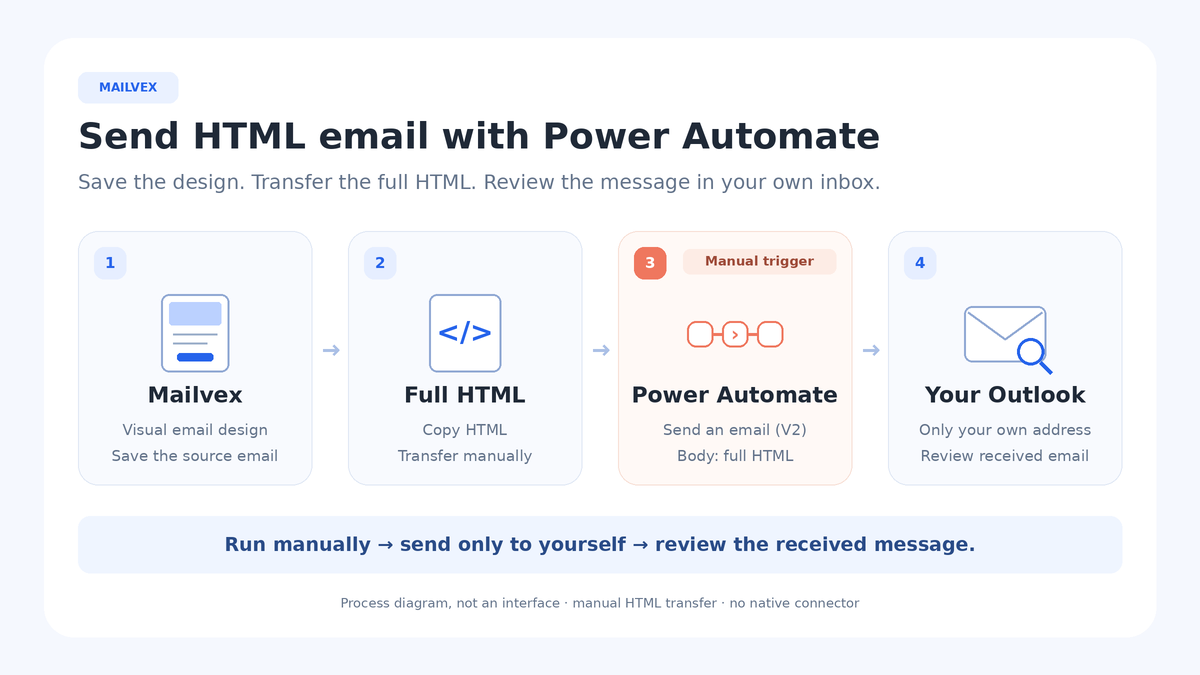
Transfer the complete HTML to Send an email (V2), inspect a message sent to yourself, then optionally add a name with Compose.
Mailvex · 24 October 2026 · 11 min read

If your team uses Microsoft 365 for notifications, you can design an email in Mailvex and send it through Power Automate. This example creates a simple request acknowledgement, transfers its HTML to Send an email (V2), and sends it to your own address. Once the static version passes inspection, an optional extension adds a recipient name.
The guide is for automation owners who need a maintainable visual source for branded notifications. It uses a manual HTML handoff, not a Mailvex connector. The instructions draw on documentation and Mailvex source inspection dated 24 October 2026; we did not execute this flow. Validate the result in your own environment and the Outlook clients you actually use.
Prepare the accounts and test materials
Use a work or school Microsoft 365 account with a suitable mailbox and a permitted connection in your Power Automate environment. The Office 365 Outlook connector may appear as Microsoft 365 Outlook. Outlook.com is a separate connector for personal mailboxes; do not select it simply because its name looks familiar.
- Access to Power Automate and your work mailbox. Office 365 Outlook is Standard, so this action alone does not make Premium mandatory. Your account, entitlements and organizational requirements still determine access.
- A Mailvex account with a verified email address and available export allowance. Plan attribution can appear in the output; Free includes Mailvex attribution.
- Your own image and a real destination for the button. Use an ordinary acknowledgement without sensitive or personal information for the initial test.
- One fixed recipient address you own, plus access to the Outlook versions you need to inspect, including a mobile client when relevant.
Create a simple notification design that you can maintain separately from its sending flow.
Design an email in Mailvex1. Build a static email in Mailvex
Start with a simple single-column template and create your own email from it. Save the project with a recognizable name, such as “Request acknowledgement — Outlook test”. Replace sample copy, images and footer content. Leave names, data-driven tables and display conditions out of the first version: establish the HTML-to-mailbox path before adding dynamic behavior.
- Heading: “We received your request”.
- Main text: “Thank you for contacting us. Our team will review your request and reply through the contact method you provided.”
- Supporting text: “You can find helpful information and contact options on our support page.”
- Button: “Open our support page”, pointing to your actual page. Do not promise a response time unless your team has agreed to it.
Remove unresolved variables such as {{first_name}} and {{unsubscribe_url}}, replacing required service links with valid destinations. For conditional blocks, open Show condition (ESP) in the right panel and turn off Show on condition. Preview simulation does not remove an export condition. Check the preheader, footer, image alternative text and narrow preview.
2. Copy the complete HTML once
Open Export HTML and leave Variable format (ESP) set to mailvex for this static sample. This profile controls variable formatting; it does not connect Microsoft 365 or provide recipient data. Demonstration values shown in a preview do not become actual data in the exported message.
- Mailvex image mode retains hosted URLs; existing external resources can remain on their original hosts. Confirm that image addresses open without signing into the editor.
- Self mode requires you to place files at the intended addresses. Entering a base URL does not upload images to your server.
- Choose only Copy HTML. To keep a local copy, save that copied source as a plain-text .html file; another download action is unnecessary.
Preserve the complete export and original visual project. Do not separate the body from the CSS for this workflow. Copying counts as an export, so check your balance before repeating it. Images do not automatically become attachments, and later project edits do not update HTML already stored in Power Automate.
3. Create a manually triggered flow
In Power Automate, choose Create → Instant cloud flow. Supply a name such as “HTML notification — own mailbox test”, select Manually trigger a flow, and choose Create. The static version needs no trigger inputs. A manual trigger lets you control the send before introducing real events or recipients.
4. Add the Outlook action and fixed addresses
After the trigger, add Send an email (V2) from Office 365 Outlook and connect your permitted work account. Complete the basic fields for the first test. Leave CC, BCC and any From override empty. Sending from another mailbox requires its own permissions and is outside this example.
| Field | Value for the first test |
|---|---|
| To | One fixed email address that you own |
| Subject | Test: request received |
| Body | The full Mailvex export, inserted through Body’s HTML source mode |
5. Paste the code into Body’s HTML mode
Inside the Body editor, select </>, clear its existing content and paste the complete Mailvex HTML. This is the editable HTML source mode within the message body. The action’s separate Code view shows read-only JSON; it is not where you paste the email design.
Do not add an IsHtml flag to this V2 action. Keep your original export: an HTML field does not guarantee preservation of every head style, responsive rule, MSO comment or VML element. Note preview differences and inspect the actual received message before making the flow more complex.
6. Run the test and inspect the received message
Use Save → Test → Manually → Test → Run flow → Done. This sends a real message to To. Open the run history and action results afterwards. Before retesting, inspect the previous run: another live run can send another email.
- Check the sender, subject and wording in the received message, not only the action’s successful status.
- Open the button and compare the final destination, including any link parameters, with your intended page.
- Check the image, its alternative text and the view with images blocked.
- Review the required Outlook client and a phone: width, wrapping, spacing and button usability.
- Inspect the preheader, footer, plan attribution and absence of demonstration variables. Keep notes against this version.
A successful action does not prove Inbox placement or visual accuracy. If no message is visible, inspect junk mail, mailbox rules and run details. Outlook versions can render the same HTML differently. Resolve visible problems in this static sample before introducing substitutions.
Optional: insert a name with four Compose actions
This extension inserts one name into ordinary visible text while keeping the recipient fixed. It is an example built from documented functions, not a production data-processing or bulk-mail workflow. Dynamic tables, URLs and HTML attributes need separate validation and formatting rules.
Prepare exactly one marker
In the original Mailvex project, change the greeting to “Hello, PA_NAME_SLOT!”. PA_NAME_SLOT must appear exactly once in ordinary body text, never in the subject, preheader, image, URL, attribute or CSS. Count its exact occurrences in the exported source, not just the visible design.
Disable the header’s “View in browser” link → Show link. The separate Mailvex web snapshot does not receive Power Automate substitutions and could display the marker. Use Copy HTML again, accounting for another export. Keep the button’s real static destination; turning off UTM is not required for this name-only example.
Compose 1: RecipientName_raw
Before Send an email (V2), add Compose from Data Operation and immediately rename it RecipientName_raw. Enter Ana & Bruno in ordinary Inputs without quotes. This is raw text, not an expression. Add all four actions sequentially, renaming each before creating expressions that depend on it.
Compose 2: RecipientName_html
Add the next Compose and name it RecipientName_html. Open fx in Inputs, enter the expression below, then select Add. Do not include @ or @{...}. Keep the exact action names and ordinary straight quotes:
replace( replace( replace( string( outputs('RecipientName_raw') ), '&', '&' ), '<', '<' ), '>', '>' )
The ampersand is processed first, followed by angle brackets. The expected intermediate value is Ana & Bruno. Encode only the name as HTML text, not the entire document. This is not a universal HTML sanitizer or encoding for a URL or attribute.
Compose 3: Email_html
Add Compose named Email_html. Paste the complete revised export, containing one PA_NAME_SLOT, into ordinary Inputs. Do not use fx or surround the document with quotes. This action holds the template in which the prepared marker will be replaced.
Compose 4: Email_ready
Add Compose named Email_ready. In Inputs, use fx to enter the following expression, then select Add:
replace( outputs('Email_html'), 'PA_NAME_SLOT', outputs('RecipientName_html') )
If an action has a different name, select its matching dynamic Outputs rather than guessing a reference. Using the specified unique names from the start keeps these expressions consistent. The capitalization of PA_NAME_SLOT must match the template as well.
Connect the result to Body and test again
In Send an email (V2), completely clear Body, including any paragraph wrapper remaining in HTML source mode. Insert only the dynamic Outputs of Email_ready. Alternatively, add the following expression through Body’s fx interface and select Add. Do not type Outputs or the formula as ordinary text:
outputs('Email_ready')
Save and repeat the manual test to your own address after checking the previous run. Inspect Compose results: RecipientName_html should contain Ana & Bruno, while Email_ready should contain no marker. The received greeting should display Ana & Bruno as normal text. These are expected acceptance results, not an account of a test we performed.
After this passes, separately map a real trigger’s plain-text name field into RecipientName_raw. Do not copy an unverified property path from another example. Before using real recipients, check missing values, data provenance, event counts and duplicate-send risks.
Troubleshoot the observed result
| Problem | Check |
|---|---|
| Raw HTML appears in the message | Use </> inside Body for source; insert a dynamic value or fx expression rather than a formula typed as text. |
| PA_NAME_SLOT remains | Exact spelling, one occurrence in Email_html, and Email_ready connected to Body. |
| The name displays & or < | RecipientName_raw contains raw text, not an already encoded value; the full document is not being escaped again. |
| An image does not load | Its public URL works without authentication; the asset exists and has not been deleted. |
| The button opens the wrong page | Compare the final URL and parameters in the original project and received message. |
| Styles or widths change | Compare the export with the received result; head CSS processing and Outlook differences can affect rendering. |
| The action succeeded, but no email is visible | Check To, run history, junk mail and mailbox rules; success does not prove Inbox visibility. |
Keep later updates maintainable
Change the design in its original Mailvex project and keep the HTML version with the flow’s revision date. For the static version, replace Body. For the personalized version, update Email_html while preserving its single marker and the Body connection to Email_ready. Pasting new static HTML directly into Body removes the substitution path.
After changes, retest to yourself, including links, images and mobile layout. Retain assets referenced by sent messages. Before integrating the design into a production flow, separately plan data checks, repeated events and permissions; the manual example does not provide those controls automatically.
Frequently asked questions
Does an HTML email require Premium?
Not inherently: Office 365 Outlook is Standard. You still need suitable Power Automate and mailbox access. Check your environment’s conditions; free access does not automatically provide every work mailbox or permission for a shared organizational workflow.
Can I paste the complete export?
This workflow places the complete HTML in Body’s source editor. That does not promise unchanged preservation of every document feature. Keep the original and accept the result based on received messages in your required clients.
Can I add a dynamic table immediately?
Validate the static email first. A table needs its own row structure, missing-value behavior and text-cell escaping. The expression for one name does not replace the design of dynamic HTML.
Do Mailvex edits update the flow automatically?
No. Previously transferred HTML remains unchanged. Export the revised design, update the appropriate flow field and run a controlled test. Keep the visual project as the source for future edits.
Start your next notification from a simple template and keep the same sequence: design, HTML, manual send, received-message check.
Choose a notification template