
Turn an image-only email into editable HTML text and a button
Rebuild a flattened banner as actual text, a useful photograph and a separate action, then test the result through your own sending platform.
Mailvex · 25 October 2026 · 11 min read
An email made from one large banner can look convincing in a preview while its lettering becomes tiny on a phone. Changing a heading means editing the artwork again, and an unavailable image can conceal the main offer. Rebuild the message as separate text, a photograph and a button so the content is editable and no longer depends entirely on loading that banner.
This is a manual Mailvex workflow using your campaign materials. It does not promise automatic recognition or recovery of the original graphic layers. You will separate the content, create native blocks and inspect the exported email through your own sender. The guidance reflects documentation and current source inspection on 24 October 2026; we did not perform a live test send.
What the redesign actually changes
A message containing one image may already be an HTML document. If that image is linked, it can also be clickable. The limitation is that its lettering and painted button remain pixels. The goal is to provide essential wording as actual text and a separate action link, while retaining photography or illustration where useful.
| Task | One flattened banner | Separate text, photo and button |
|---|---|---|
| Change a heading | Edit the artwork | Edit the project’s text field |
| Read on a phone | Lettering shrinks with the banner | Text can wrap; verify the actual result |
| Understand without images | Meaning depends on the banner and its alternative | Offer and essential terms remain text |
| Follow the action | The entire image may be linked | The action has its own label and destination |
| Create another language version | Produce another graphic | Change the wording and review its layout |
| Maintain images | Keep the banner available | The supporting photo still needs hosting |
A logo, product photograph or expressive illustration can remain an image. You do not need to reproduce every visual detail in code. Separate the information readers must understand and act on: heading, offer, material conditions and action. This change alone does not establish full accessibility or consistent rendering in every email client.
1. Inventory the banner’s content
Write down the copy from your own artwork and verify it with the campaign owner. Record the actual terms, button destination and required footer separately. If the banner contains a price, deadline or restriction, preserve that information when simplifying the design. Small lettering at the bottom can carry important conditions.
| Original element | Move it to | Verify |
|---|---|---|
| Heading and explanation | Editable heading and body text | Wording matches the actual offer |
| Price, dates and restrictions | Visible text near the offer | All material terms are retained |
| Product photograph | A separate image block | A suitable source asset and a useful role |
| Painted button | A native button with text and a URL | A real destination and meaningful label |
| Logo and service footer | Brand asset plus separate details and links | Sender identity and required elements remain |
Use the original photograph if you have it. If only your flattened artwork remains, prepare a suitable crop or replacement in an external graphics editor, or omit an optional photo. Mailvex’s Image block does not automatically extract photography, recognize text or slice the finished banner into editable content.
2. Prepare a concrete content example
Consider a fictional store introducing a new desk collection. This example contains no invented discount, deadline or performance claim. Use its structure, then replace product wording and the destination with information you have verified:
- Subject: “A new collection for your desk”.
- Heading: “Refresh your workspace”.
- Copy: “Explore our new collection of desk organizers and accessories. Choose pieces that suit your space and the way you work.”
- Button: “Explore the collection”, linked to your actual collection page.
- Photo: your own product photograph. Example alt: “Desk organizer and pen holder”, if that accurately describes the image.
Set the subject separately in your sending platform; a design heading does not replace it. Include relevant purchase or delivery conditions as ordinary text when the real offer needs them. Do not leave a demonstration URL, a # destination or an address that only exists in the example.
3. Create your own Mailvex project
Choose a simple single-column design from the catalog and select Use this template on its detail page. You need an account with a verified email address and available export allowance. The new copy becomes your project. Give it a recognizable name and keep the original banner separately as a reference, not a required component of the rebuilt email.
Try rebuilding your campaign as separate blocks for its offer, photograph and main action.
Create an email in Mailvex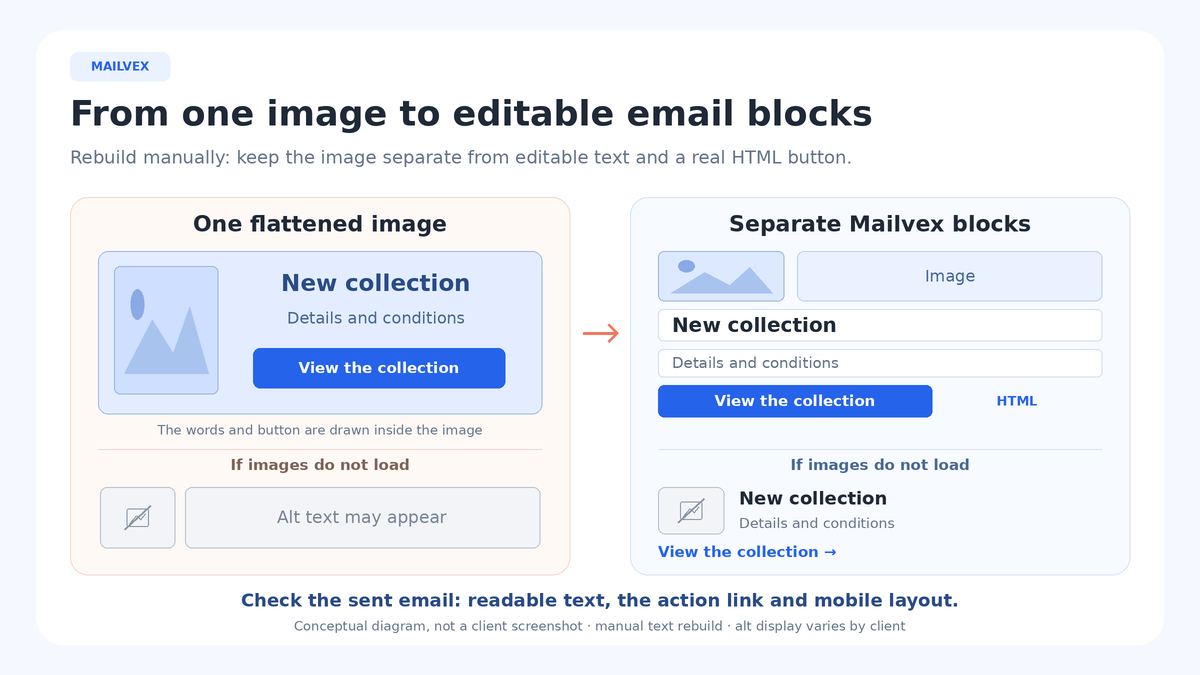
4. Build the editable blocks
Remove the complete promotional banner from the new project if it is present. Open Blocks on the left and add the elements you need. Retain a suitable logo and required sender details. Do not put the whole original banner underneath the new text version: that restores tiny lettering and duplicates the message.
- Heading + text: enter your heading in Heading. You can keep the paragraph in the same block’s Text field.
- For an independently movable paragraph, leave that Text field empty and add a separate Text block. Do not fill both places with identical copy.
- Image: use a useful photograph or illustration rather than an image of the entire message.
- Centered button: complete Button text and Button URL. In this example, use “Explore the collection” and your real destination.
Put offer conditions in text blocks rather than lettering at the bottom of a photograph. Start with one primary action and a natural reading order: heading, explanation, useful image, button, conditions and footer. Rearrange when appropriate, but do not make readers infer essential meaning from the image.
5. Add a useful photograph and suitable alt text
Select the Image block and choose Open media library. Choose an existing asset or use Upload. Use an appropriate PNG or JPEG from your materials. If the photo makes the email unnecessarily tall, prepare a better crop externally rather than shrinking the whole message to accommodate it.
Enter plain text, without HTML, in Image description (alt). Describe a useful detail of the photograph; for a logo, identify the actual brand. Do not paste the entire newsletter into this field. If the image has a Link on click, its alternative should help explain that destination. For this sample, leave the photo unlinked and use the main button.
A purely decorative image with no action or unique information can use an empty alt value; the block supports it. Do not treat an image as decorative if it alone communicates an important fact. Clients differ in how much alt they display, so offer conditions still belong in ordinary visible text.
6. Check visibility and narrow layouts
For the heading, essential copy, button and their containing blocks, open Visibility. Keep Hide on mobile and Hide on desktop off when the content must appear in both views. An independent HTML button cannot help if its parent container hides it.
Switch preview widths using the monitor and phone icons. Inspect heading wraps, line length, spacing and the button label. Text should fit the available width rather than resemble a scaled-down poster. Look for clipped lines and horizontal scrolling. These browser previews are useful layout checks, not Gmail or Outlook rendering engines.
7. Copy the HTML and inspect its structure
Remove unused demonstration variables and unwanted ESP conditions from the static sample. On the relevant blocks, turn off Show condition (ESP) → Show on condition. Retain the real footer and required service links. A production campaign’s personalization, unsubscribe handling and conditions must match the actual sending system.
- Open Export HTML, leave Variable format (ESP) set to mailvex, and check your remaining allowance.
- Choose Copy HTML once. Save that complete source as a plain-text .html file if needed; another download action is unnecessary.
- Find the heading, paragraph and button label in the source. They should exist as text, not solely inside an image file.
- Review the button destination, alt, photo URLs and any attribution required by your plan. Removing required branding is not part of the redesign.
Trying to select the wording is a useful clue, but not definitive: some clients recognize text in images. Inspect the exported HTML and received-message behavior together. The mailvex profile does not connect a sender, and demonstration preview values do not become actual recipient data.
Mailvex image mode retains hosted URLs, including possible external dependencies. They must open without an editor login. Self mode requires you to host the files at the corresponding addresses; changing the base URL does not upload them. Keep assets available while previously sent messages still reference them.
8. Test through your existing sending platform
Paste the complete code into your sender’s actual HTML mode, or import the file using a supported method. Do not paste source into an ordinary rich-text field. Send a controlled test only to your own mailbox through that service. In this workflow Mailvex supplies the design and HTML; it does not launch the campaign.
Do not assume every client blocks pictures the same way. Check the received message on a phone, a desktop and any Outlook version you need. Then use your test client’s remote-image blocking setting where supported. Mailvex has no verified dedicated images-off preview control. Do not delete production assets or disconnect all networking: that would compromise the link test.
Without the photograph, readers should still identify the sender, understand the offer and essential conditions, and recognize the action label. When the client permits links, verify the button’s final destination. A separate link reduces dependence on image loading; it does not bypass security policies that block links. A linked banner may also retain alt or a clickable placeholder, depending on the client.
Record your acceptance results
| Check | Record |
|---|---|
| Text without images | Heading, offer and material conditions remain understandable |
| Independent button | Its label is meaningful and the destination matches the campaign |
| Phone layout | Text wraps without clipping; the action is usable; it is not a scaled poster |
| Image and alt | Photo is useful, alternative matches its role, and the public URL works |
| Footer | Sender details and required service links remain intact |
| Editing | A heading can change in the project without rebuilding the artwork |
| Sent version | Received content matches the latest transferred HTML |
Also review contrast and reading order. If you have access to a screen reader, check for meaningful text and links rather than repeated banner copy or filenames. This is a useful observation, not a complete accessibility audit.
Common problems after rebuilding
| Problem | Change |
|---|---|
| The heading is still raster lettering | Put it in the heading field, not only in alt |
| The photo makes the message too tall | Prepare a suitable composition externally and replace the asset |
| Copy appears twice | Remove the whole old banner or the redundant paragraph |
| The button is painted into the image | Use a native button with its own label and URL |
| Only the author can see the image | Check its public address without authentication |
| The footer disappeared | Restore required information and working service links |
| The inbox shows an old version | Export the revised project and replace the sender’s HTML |
Keep the project, exported source and controlled test result together as one version. Later Mailvex edits do not automatically update previously pasted code. If you subsequently compare campaign variants, hold the offer and sending conditions comparable and evaluate clicks and meaningful actions, not opens alone. This tutorial establishes no performance lift.
Frequently asked questions
Can I keep a large hero image or logo?
Yes, if it serves a visual role while important meaning and the action remain available separately. Check its height on a phone and keep essential conditions out of image-only lettering.
Will slicing the banner or increasing resolution help?
That may change image placement or sharpness, but it does not turn painted lettering into editable paragraphs. Create text and actions as separate elements for that result.
Can screenshot import provide a starting point?
It is a separate way to produce a draft that still needs manual review and replacement imagery. This workflow deliberately allocates the content by hand rather than depending on recognition.
Is HTML text the same as a plain-text email version?
No. These are text elements inside an HTML message. A separate plain-text MIME part depends on your sending platform and configuration; this workflow does not promise to generate one automatically.
Will this guarantee that the email avoids spam?
No. Replacing a banner does not replace sender configuration, reputation or recipient practices. There is no universal image-to-text percentage here that guarantees delivery.
Are translated versions created automatically?
No. Replace copy and check wrapping, labels and terms for each language you need. Publishing this article in several languages does not translate your email designs.
Choose a simple template, keep images for visual content, and give the message and action their own editable elements.
Choose an email template