
Design a GLPI email notification: a Mailvex template and a new-ticket test
Prepare the HTML, transfer it to your own GLPI notification template and check a new-ticket email sent to your address.
Mailvex · 24 October 2026 · 13 min read

A support notification should answer three questions quickly: which ticket was created, what its status is and where to open it. Build that design in Mailvex and let GLPI provide the ticket data and delivery. Transfer the HTML to your own notification template and replace prepared markers with GLPI tags.
This guide covers one New ticket event in GLPI 11 and 12. Use a separate test installation, your own new template and one recipient: your account. Keep the standard template unchanged. No Mailvex API integration is required; transfer the code manually and configure the notification in GLPI.
1. Prepare an isolated test
GLPI notification templates have global scope. Creating a test entity inside a working installation does not itself isolate the change: inherited notifications may still apply. Use a separate test installation with controlled email settings and accounts for this walkthrough.
- Check that email notifications are already enabled and working, with outgoing email and queue processing configured in the test GLPI. Resolve mail-server connection errors before assessing the design.
- Create or choose your own test account with a valid email address. It will be the new ticket’s only Requester.
- Review existing New ticket notifications in that test installation. One event can match several definitions.
- Prepare access to Notifications and Notification templates, plus a Mailvex account with a verified email address and HTML export available under its plan.
- Use a fictional ticket subject and description without real customer information.
Check both design and delivery routing. A message missing from the queue may indicate an event or recipient problem. A message waiting in the queue may indicate a processing problem. Neither can be diagnosed by looking only at HTML.
2. Build a minimal design in Mailvex
Choose a simple single-column template using ordinary left-to-right text. Keep a logo, heading, three data lines, a button and support contact details. Leave complete ticket conversations and complex conditional blocks out of this first example.
| Design element | Value to put in Mailvex |
|---|---|
| Heading | Request received |
| Ticket ID | Plain text GLPI_ID_SLOT |
| Ticket subject | Plain text GLPI_TITLE_SLOT |
| Status | Plain text GLPI_STATUS_SLOT |
| “Open ticket” button | URL https://example.com/GLPI_TICKET_LINK |
| Footer | Your current support contact details |
The three data markers are ordinary text you add yourself. Place them in text blocks. The example.com destination is temporary: replace it completely after export with the GLPI URL tag. It must not remain a working link in the sent message.
Remove sample personal data and unresolved {{...}} variables. For conditional blocks, open “Show condition (ESP)” and turn off “Show on condition”. Check the language and entire footer. The mailvex export profile does not populate GLPI data, and demonstration values in the preview do not confirm that future ticket substitutions will work.
Disable UTM tags and the static web version
In Mailvex’s left panel, open Settings → UTM tags and turn off “Add UTM to all links”. Then set the button URL again to exactly https://example.com/GLPI_TICKET_LINK, with no query after ? or fragment after #. Turning off the general setting does not remove parameters previously added to a URL manually.
In the header settings, find the “View in browser” link and turn off “Show link”. Mailvex’s static web version will not receive the current ticket data from GLPI and can retain the original markers. Use the ticket button for the destination instead.
Review images, labels and the narrow layout. Image files must remain accessible at their URLs. With self-hosted storage, upload them to the configured destinations. Keep files that sent notifications still reference.
3. Export the code and replace every marker
- Open “Export HTML” in Mailvex. For this transfer, leave “Variable format (ESP)” set to mailvex.
- Click “Download HTML” and save the file to your computer.
- Open that file in a text editor. Use the source code rather than copying the rendered email from a browser.
- Keep an original copy and make the following replacements in a working version.
| Find in the exported code | Replace with |
|---|---|
| GLPI_ID_SLOT | ##ticket.id## |
| GLPI_TITLE_SLOT | ##ticket.title## |
| GLPI_STATUS_SLOT | ##ticket.status## |
| https://example.com/GLPI_TICKET_LINK | ##ticket.url## |
Replace all occurrences of the URL, not just the first. One visible button can have an ordinary anchor and a separate VML version for Outlook. Changing only one destination can send different clients to different pages. After replacement, search individually for GLPI_ID_SLOT, GLPI_TITLE_SLOT, GLPI_STATUS_SLOT and GLPI_TICKET_LINK. Each exact marker should return no matches.
The literal tags ##ticket.id##, ##ticket.title##, ##ticket.status## and ##ticket.url## must remain in the code. GLPI supplies their values when preparing the notification. Do not replace them with one test ticket’s fixed values in the reusable template.
If you have no starting design, build a simple Mailvex notification with three text markers and one button.
Create a Mailvex account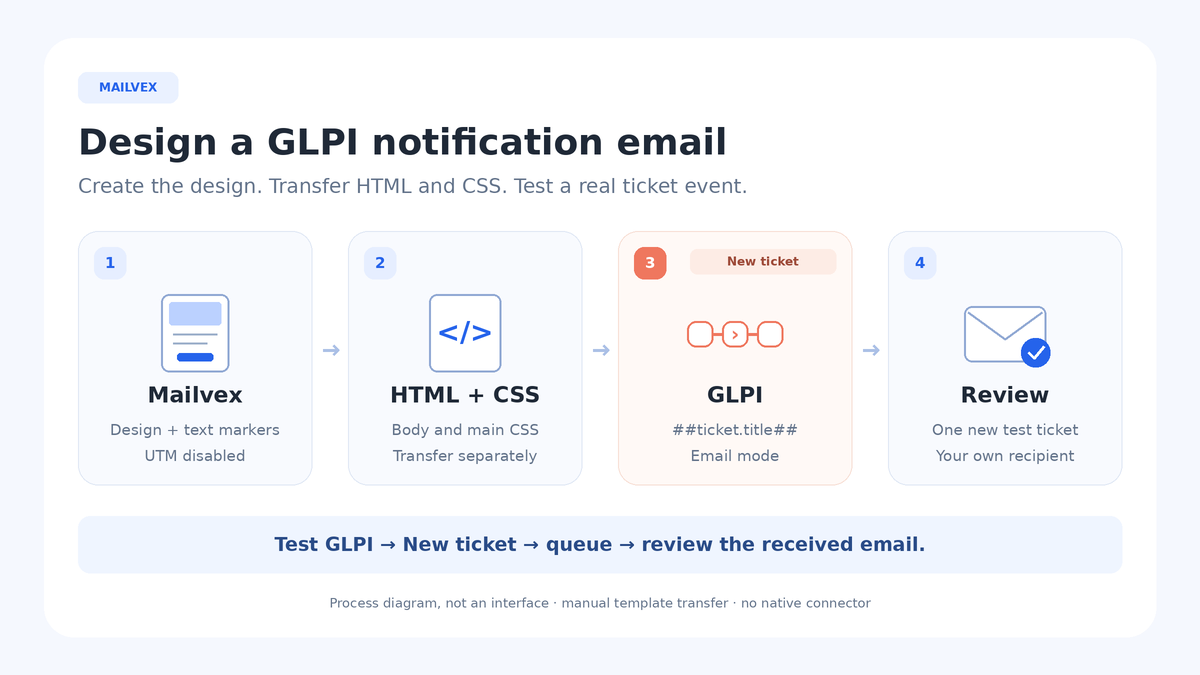
4. Separate the email content from its CSS
GLPI creates its own HTML email wrapper. Transfer the inner body content into Email HTML body and keep the main CSS in the template’s separate CSS field. Pasting a complete document with head and body adds unnecessary wrappers and is not the method used here.
- Find the opening <body tag in the working file. It may include style, identifier or text-direction attributes.
- Locate the > that closes that opening tag. Copy everything after it up to the closing </body>. Exclude the body tags themselves.
- Keep the fragment’s tables, preheader, text, buttons and inline styles. Do not remove markup simply to shorten the code.
- In head, find the first main unconditional block beginning with <style type="text/css">. Copy only the contents after the opening tag’s closing > and before its matching </style>, excluding the tags themselves.
- Do not put a separate style block inside an MSO conditional comment into the general CSS field. Those special rules target a limited environment; flattening them can affect every client.
Keep scripts, head metadata and the document wrapper out of Email HTML body. A simple Mailvex design may already repeat its background on the outer table, but the body element’s own attributes are lost in this transfer. Check the background, width and spacing after saving in GLPI.
GLPI processes the HTML you paste. VML in the original export does not guarantee that it survives processing or renders identically in Outlook. Replacing every URL controls link destinations; appearance still needs checking in the received email.
5. Create your template and Default translation
Open Setup → Notifications → Notification templates and click Add. Use a new recognizable Name, such as “Mailvex — New ticket — TEST”, and Type = Ticket. Put the prepared main CSS in the template’s CSS field without style tags. Save the template.
Under Template translations, add Default translation. It provides a fallback for recipient languages without a separate translation. One consistent language version is enough for this initial test; a missing translation does not cause the content to be translated automatically.
| Translation field | Content |
|---|---|
| Subject | Request received: ##ticket.title## |
| Email text body | A complete plain-text version with the ticket ID, subject, status and URL. |
| Email HTML body | The prepared inner body fragment containing GLPI tags. |
For Email text body, you can use this complete example:
Request: ##ticket.id##. Title: ##ticket.title##. Status: ##ticket.status##. Open request: ##ticket.url##. If you need help, contact your support team.
Open the source editor for Email HTML body: right-click within the editor and choose Source code. Paste the prepared fragment there, confirm the change and save the translation. Pasting code as ordinary rich text can display the HTML tags to the recipient.
Reopen Source code and inspect the saved result. Ticket tags should remain; temporary markers and example.com/GLPI_TICKET_LINK should be absent. GLPI adds its own service prefix to the subject, so do not manually add a second [GLPI #…].
6. Bind the template to a separate test notification
Go to Setup → Notifications → Notifications and click Add for a new definition. Give it a test Name. While configuring it, keep Active = No, choose Type = Ticket and set Event = New ticket.
- Open Templates, also described as Notification templates in the documentation.
- Use Add a template to add a binding: Mode = Email and Notification template = your new template.
- In Recipients, keep only Requester for this test definition.
- Review the notification’s scope and other definitions that apply to the same test ticket.
- Immediately before the test, set Active = Yes and save your definition.
Create a new ticket with a recognizable fictional subject. Its only Requester must be your test account with your own email address. Track that ticket specifically. Editing an existing ticket does not replace testing the New ticket event.
7. Inspect the queue and received message
Open Administration → Notification queue and locate the message for your test ticket. Check its recipient and content. If the active queue is empty, first check your inbox and junk folder, then the queue’s recycle bin: a processed record may have moved there. Inspect the sending date and errors. A record in the recycle bin alone does not prove delivery. If the message is not found anywhere, review the event, active definition, Email binding and Requester address.
If the message remains queued, check Setup → Automatic actions → queuednotification: its state, recent executions and errors. Wait for the configured scheduler to process the queue. Delivery also depends on the outgoing mail connection. Do not force processing for one message without checking the entire queue: the action can affect other messages. Editing HTML cannot resolve a scheduling or mail-server authentication failure.
- Open your received message, checking the junk folder too. Review the sender and subject.
- Confirm that the tags have become the actual test ticket’s ID, title and status.
- Review the text and HTML parts; both should explain the same event.
- Click the button and confirm it opens the correct ticket in the intended test installation, subject to your access rights.
- Check a narrow screen, images, background and button in clients that matter to your team.
Queue status and successful transmission do not guarantee inbox placement or identical rendering. Design review requires the received message. If a link points to the wrong installation, inspect the GLPI URL and ##ticket.url## substitution as well as the button label.
8. Finish the test and plan the production change separately
After checking the result, set Active = No only on your test notification. Keep the original HTML, CSS, template name and review outcome. Leave standard templates and other notification definitions unchanged during this exercise.
For production, separately identify the existing Email binding that should use your template and record its previous selection for rollback. Adding another active notification for the same event can cause duplicates. Agree on recipients, translations and scope before changing the binding, then repeat the check under your normal change process.
Common problems
| Symptom | What to check |
|---|---|
| ##ticket.title## or another tag is visible | Type = Ticket, the event, exact tag spelling and the selected translation’s saved Source code. |
| GLPI_ID_SLOT or GLPI_TICKET_LINK remains | All replacements were made in the version actually saved in GLPI. |
| The Outlook button opens example.com | Every URL occurrence, including VML, was replaced and an old template version is not being used. |
| Background or mobile styling is missing | Main CSS was transferred separately, inline styles remain and MSO-only rules were not made global. |
| No message is in the active queue | Your mailbox and the queue recycle bin, including sending date and errors; then the definition, event, Email binding and Requester. |
| The message stays queued | queuednotification, execution errors and the outgoing mail connection. |
| Several notifications arrive | Other matching definitions, inheritance, recipients and repeated events. |
Frequently asked questions
Is the ticket ID the same as our usual ticket number?
##ticket.id## outputs the GLPI identifier. In the inspected 11.0.11 and 12.0.0 versions, it is padded with leading zeroes to at least seven digits. If a plugin or your organization uses a separate numbering scheme, verify it rather than assuming this tag supplies that number.
Why use Default translation for an English-only email?
It is the fallback for recipients whose language has no separate translation. Content is not translated automatically. When adding translations, review Subject, both email parts and all tags in each version.
Does successful queue delivery validate the HTML?
The queue covers a different stage. A message can be transmitted with a broken link or incorrect layout. Check the substituted data and received email separately.
Will editing Mailvex update the GLPI template?
No. Repeat the export, tag replacements and transfer of inner body and CSS. Retest after saving, retaining the previous working version.
For another notification, choose a simple Mailvex template and adapt it to one GLPI event. Check its data, recipient and appearance before production use.
Browse email templates