
How to hand off an HTML email to a client: files, assets and checks
Identify the sending HTML, explain ZIP and EML dependencies, include a README and assign the client-platform acceptance checks.
Mailvex · 25 October 2026 · 11 min read

Handing an HTML email to a client means delivering an understandable working version: which file to import, where images will load from, what the sender still needs, and who handles the next revision. A polished preview does not answer those questions. A useful package lets the marketer continue without searching a conversation for the right source.
This workflow is for freelancers and small agencies designing in Mailvex while the client sends through their own platform. Choose a primary format, write a short README, and distinguish design approval from a sending test. Product behavior and external requirements were checked on 25 October 2026; we did not export, import or send a live email.
1. Agree on the deliverable before exporting
Start with the person who will import the email. Rather than only asking whether they want HTML or ZIP, establish the sending platform and its available import method. Separately clarify whether the client wants usable code or expects to rearrange the original blocks in a visual editor.
- Platform and import route: who verifies that the client account supports it.
- Primary artifact: HTML with hosted images, or a separate package tailored to the importer.
- Hosting: who owns the images, maintains their URLs and authorizes deletion.
- Future edits: who keeps the editable project and creates revised exports.
- Acceptance: who checks content, variables, service links and the received test message.
An HTML export does not automatically transfer the native Mailvex project, history or account access. If the client needs original block editing, agree a supported access arrangement separately. Also establish their right to use images and fonts: receiving files in an archive does not itself transfer a license.
2. Choose the primary format and supporting materials
| Material | Useful for | Tell the client |
|---|---|---|
| HTML with hosted images | The normal code-transfer route to a sender | Images still depend on working public URLs |
| ZIP with email.html and images/ | Transferring available assets and viewing locally | External or failed image downloads may remain remote; inspect any README |
| EML | Optional viewing in an agreed email client | It is not a ready editable draft or sender configuration |
| PNG reference | Recording the intended appearance of a version | A separately prepared image, not a sending file or compatibility test |
Do not generate every format automatically. A simple handoff can use one primary HTML file, asset notes and a visual reference. Include ZIP when local assets are needed and EML when the viewing route is useful. Prepare a PNG reference separately if required; this workflow does not assume a built-in PNG export.
Keep the general delivery package and build a separate sender-specific artifact when necessary. Do not move or rename assets inside a working archive without checking references. Other platforms can expect different arrangements; the file extension alone does not establish compatibility.
3. Prepare the final Mailvex version
Use your own project in an account with a verified email address and available export allowance. Check final copy, button destinations, image alt, preheader and footer. Review narrow and wide layouts using the phone and monitor icons. This is a browser layout inspection, not evidence of email-client rendering.
Freeze design changes while preparing the package. For a static example, remove demonstration values and unnecessary display conditions; turn off Show condition (ESP) → Show on condition on affected blocks. For production, retain agreed variables and required service elements. Do not replace a working unsubscribe mechanism with a fake static address.
Open Export HTML. Variable format (ESP) controls syntax; it does not connect the client’s account. Leave mailvex for the static sample, or agree the profile and actual sender fields for personalization. A preview displaying a sample name does not establish that recipient data will resolve during sending.
Keep an editable source project and give your client one clearly identified HTML version.
Create an email in Mailvex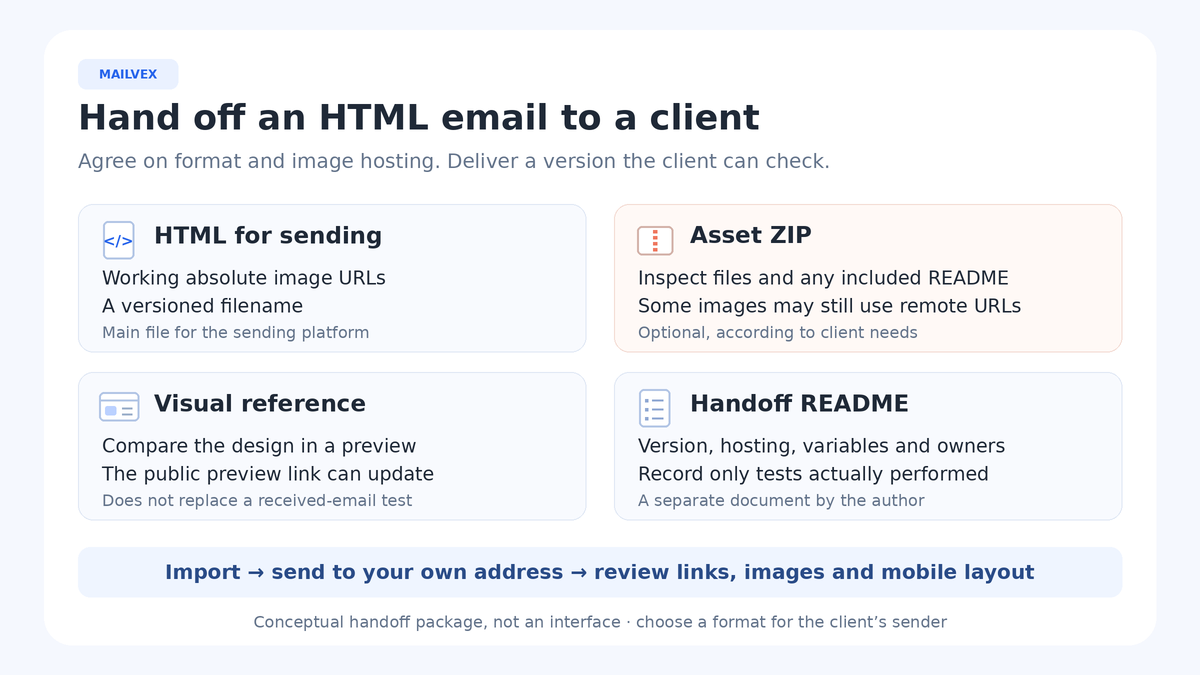
4. Export the agreed format and inspect its dependencies
Main route: HTML with hosted images
Keep image mode set to Mailvex and choose Download HTML. Save a campaign-language-version filename, such as desk-collection-en-v03.html. Inspect the actual output, including any plan-required attribution: a public preview does not prove that branding looks identical in the final export. Copying the code again is unnecessary for this same delivery.
Open image addresses without relying on an editor login. Identify the owner of each host, including third-party resources. A local folder does not replace URLs in messages already sent. Do not clear the media library after handoff: an archive on the client’s computer cannot restore a missing public endpoint.
When the client also needs an asset archive
In Mailvex image mode, choose Download ZIP (HTML + images) as an additional agreed export. Extract a copy and inspect email.html, images/ and README.txt if present. Successfully fetched Mailvex assets become local files; external or unavailable resources can remain remote. The generated README reports such dependencies, but its absence is not an acceptance signoff.
The archive’s email.html may use relative images/ paths. That helps local packaging without making it ready for every sender. Label the archive as assets and local reference, and identify the hosted-URL HTML as the canonical file for the agreed import. Downloading HTML and ZIP uses two separate export operations.
When the client must host the images
Agree the host and upload the files first. Then use Self mode with the correct base and inspect the resulting URLs, ordinary links and required attribution. This changes addresses rather than deploying assets. Selecting Self before ZIP does not guarantee inclusion: rewritten destinations may be treated as external resources by the packager.
Avoid blanket replacement of src, CSS or VML throughout the document. The client needs verified final addresses or a supported import process that hosts assets itself. Record who completes that step; until then, a local bundle remains preparation material rather than sending-ready HTML.
When an optional EML was agreed
Use Download .eml only when useful. Some available Mailvex images can be embedded as MIME parts, while external or failed resources remain network-dependent. The file has sample sender and recipient headers. It is not already configured to send on the client’s behalf.
Opening an EML does not install a reusable template in the sending platform or guarantee an editable draft. Additional HTML, ZIP and EML actions consume separate exports. Check the balance before retrying: a packaging failure after successful export does not necessarily mean no allowance was used.
5. Provide a visual reference without confusing versions
For a quick review, use the … menu → Share. In Public preview link, choose Copy and leave Allow comments via the link off. Anyone holding the URL can view it without an account and can forward it. This is not a closed client portal or access to the editable project.
Sharing again updates the snapshot at the same URL. An export with the automatic View in browser header link enabled can also update and reactivate it. Do not treat that link as an immutable approval record or rely solely on an earlier disable action. Keep confidential information out of a broadly shared preview.
For a fixed reference, save a separately prepared image with its date and version, such as desk-collection-en-v03-reference.png. State whether it came from browser preview or a received test. Record approval through the team’s agreed process, identifying the version and files explicitly.
6. Include a short README
Here is a fictional desk-accessories campaign using hosted HTML as its primary deliverable. Optional formats are not mandatory. Fill bracketed fields with your own details. This is the author’s delivery note, separate from the technical README that may appear inside a ZIP.
Project: desk collection. Language: EN. Version: v03, 25 October 2026. Primary file: desk-collection-en-v03.html. Subject: “A new collection for your desk”. Preheader: “Organizers and accessories for your workspace”. Sending platform and import method: [complete].
Images: public URLs in the primary HTML. Hosting owner and contact: [complete]. External dependencies: [list after inspection]. Editable project retained by: [name]; HTML does not transfer it. Variables, unsubscribe handling and sender details: [agreed syntax and responsible person].
Checks: import and test sending in the client account have not yet been performed. Visual reference: [filename and origin]. Next action: [owner] imports this version and checks a message sent to controlled test addresses. Approval status: pending. Future revisions handled by: [name].
Replace example statuses with observations, never marking an unperformed test as passed. If a ZIP is included, name it and explain the purpose of its email.html. Keep one canonical file rather than a competing collection of “final”, “final2” and “latest-final” versions.
7. Accept the email through the client’s workflow
The authorized operator imports the canonical file through the agreed platform’s real HTML mode, reviews the draft and sends a test to controlled addresses. Forwarding an old email is not equivalent. Treat browser reference, EML viewing and a received-message check as different observations.
| Check | Record |
|---|---|
| File and version | The canonical HTML named in README was imported |
| Images and links | Public resources load; the button reaches the agreed page |
| Personalization | Account fields, missing-value behavior and the appropriate test method |
| Service elements | Sender, reply handling, footer and unsubscribe match the platform |
| Received message | Client/device, desktop/mobile appearance and remaining defects |
| Decision | Who accepted the version, outstanding tasks and who authorizes sending |
An ordinary test may not resolve contact data like a production message. Identify unverified fields and let the authorized operator complete the appropriate check using controlled data. Design acceptance is not permission to send a campaign. The account owner separately determines recipients, conditions and launch.
If the client cannot use the package
| Problem | Check |
|---|---|
| Local images are missing | The archive was fully extracted and relative paths remain intact |
| Received images do not load | Assets are published and absolute public URLs are correct |
| The ZIP is rejected | The specific importer’s requirements; a delivery archive can be a different format |
| The layout changed | Source version, import processing and the particular email client |
| Raw variables or an extra footer appear | Sender syntax, account mappings and required service tags |
| EML did not become an editable template | Its purpose was optional viewing, not native project installation |
| The client sees an older design | File version, re-import and origin of the visual reference |
Close the handoff and assign future revisions
Deliver the file list, version, check status and open tasks together. Retain the original project and the exact delivered package. Every subsequent design change needs a new export, replacement of the client’s version and appropriate retesting. Editing the project does not automatically update a previously downloaded file.
An archive is a copy of assets, not a promise of future hosting. A preview is a reference, not an approval record. The useful outcome is one understandable sending HTML and a named owner for the next step. That is more actionable than every available export with no explanation.
Choose a simple template and organize the eventual delivery from the start: version, primary HTML, image ownership and test responsibility.
Choose an email template